
In this update15
Full notes
Full ConsoleMe update
Read the full published notes in a cleaner layout. The original post stays linked below.
What changed
- Gameplay
- UI and audio
- Events
- Maps
- Balance
ConsoleMe changes
Hi Everyone!
Loads of (relatively small) quality of life updates this week as well as the other 2 main releases that went out this last week or two. The main focus for this quality of life patch was on polish and tidying up things and fixing a few more bugs.
Check below for details.
Side note; at time of writing this, the update is not out yet, but the update will be out Friday 05 June at latest
Thanks for playing :)
Football Chairman & UI Additions
Football Chairman — Squad
Overall rating (OVR) Each player now has a single OVR number (like FIFA), based on their position — goalkeepers lean defending, forwards lean attack, and so on.
Open Empire (sidebar) → Football Chairman → Squad
New OVR column (colour-coded: green / amber / red)
Click the column header to sort by OVR (default sort is best players first)
All six stats (ATT, DEF, etc.) are still there if you want detail
Player form Form shows how a player has done in their last few matches.
Squad tab: Form column shows a number (e.g. [c]6.4[/c]) plus arrows:
▲▲ hot · ▲ good · — neutral · ▼ poor · ▼▼ cold
Hover for a tooltip with the exact average
No matches yet → shows — (neutral) until they play
Player profile Click a player’s name on the Squad table:
Home kit on the back (number + name)
OVR in the header and on the attributes panel
Form arrows next to their name
Transfers / scouting When previewing a player to buy, Overall uses the same OVR logic (scout reports may still show a fuzzy range).
Football Chairman Lineup
The pitch view is now kit-based instead of plain boxes.
Empire → Football Chairman → Lineup
Each starter shows your home kit (back view): pattern/colours, shirt number, surname
OVR badge on the kit; form under the name
Captain marked with a ★ on the kit
Manager’s pick (read-only): kits only
Take control: same kits, with a small dropdown under each player to change them
Bench: small kit chips (tap ✕ to remove a sub in override mode)
Match day Open lineup from the match dock the same way as before — Match Day dock → adjust lineup / Football Chairman → Lineup.
Under the hood (what you’ll notice)
Form and season Rating update after matches for players who actually started (not random bench players).
Form is based on the last 5 match ratings; new signings stay neutral until they play.
At season end, form history resets with other season stats.
Quick reference
| What | Where to find it |
|---|---|
| OVR & form | Football Chairman → Squad |
| Kit lineup | Football Chairman → Lineup |
| Player details | Squad → click name |
Football Chairman is under Empire in the sidebar once you own a club. Passion projects / empire unlocks apply as before.
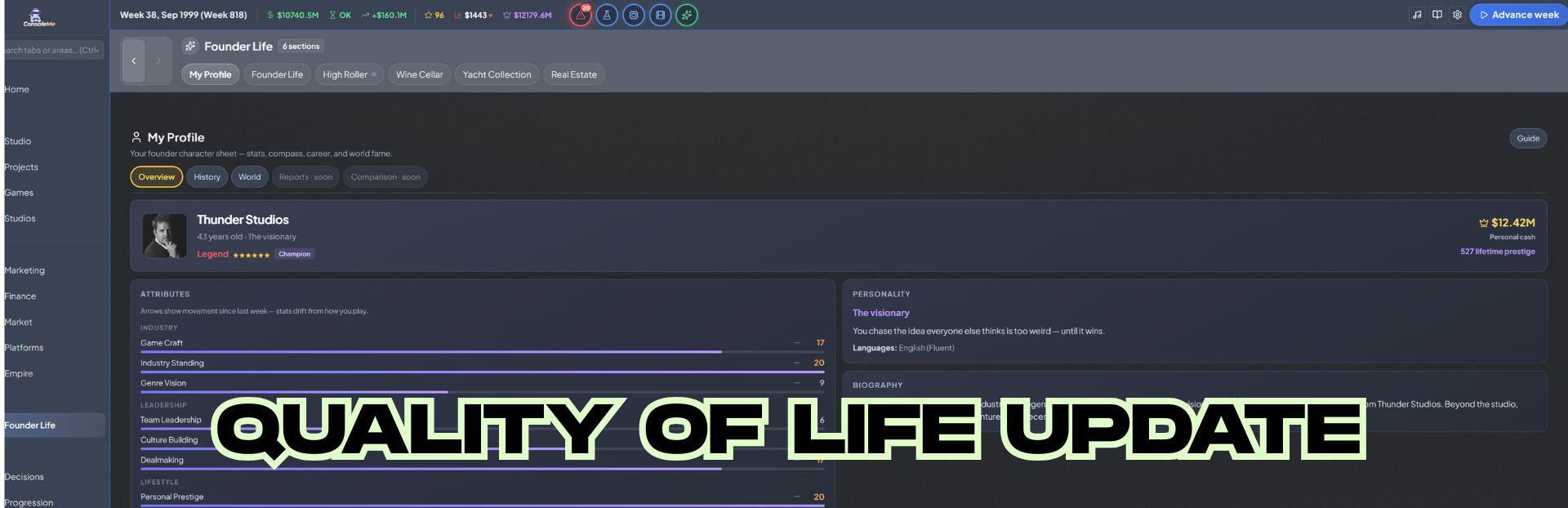
My Profile
Who this is for: Players who have unlocked the Mogul layer (same gate as Founder Life).
Where to find it
Sidebar → Life → My Profile (first tab in the Life group)
Also
Life → Founder Life hub → My Profile card
Still separate: Empire → Mogul Profile = money, deals, and empire actions. My Profile = who you are as a founder (stats, career, fame).
New: My Profile (founder character sheet)
Football Manager–style sheet for your founder — complements Mogul Profile, does not replace it.
Sub-tabs:
Overview — main dashboard
History — full career CV and milestones
World — global fame map
Reports / Comparison — coming soon
Overview tab
CEO portrait
Path: Life → My Profile → Overview → click the portrait (top card)
Upload PNG/JPG/WebP/GIF (max 500 KB, same idea as studio logo)
Hover for Change photo; trash icon to remove
Saves with your game
Attributes (1–20)
Path: Life → My Profile → Overview → Attributes
Stats in four groups: Industry, Leadership, Lifestyle, Empire
Trend arrows (after at least one week has passed):
↑ up since last week
↓ down since last week
— flat
Grey dash = no comparison yet (new save or first week)
Stats drift weekly from how you play (reviews, culture, ventures, casino, etc.)
Industry compass
Path: Life → My Profile → Overview → Industry compass
Click the chart (or Enlarge) → full-screen popup
Hover pins/names on the map → short bio in the panel below (no long list)
Same enlarge behaviour on Empire → Mogul Profile → Founder / compass section
World fame (mini map)
Path: Life → My Profile → Overview → World fame
Click the map or View World tab → jumps to World sub-tab
Globe button in the panel header still opens the main World Map (global market view)
Career history (preview)
Path: Life → My Profile → Overview → Career history
Short table; click a row to jump to that part of the game (studio, gym, airline, etc.)
Other Overview panels
Personality & biography
Venture roles (link to Empire)
Career stats
Recent milestones
History tab
Career CV
Path: Life → My Profile → History → Career CV
Columns: Year · Organization · Role · Highlight
Highlight = at-a-glance success (examples):
Studio: lifetime game revenue, YoY growth, market cap if public
Gym: members & weekly profit
Airline: fleet, profit, passengers
Football: league position & fans
Passion projects: circulation, show ratings, prestige, etc.
Click a row to open the linked screen
Milestone timeline
Path: Life → My Profile → History → Milestone timeline
Studio, empire, and mogul highlights in order
World tab
Path: Life → My Profile → World
Full fame map with overlays: Fame · Studio footprint · Ventures
Region list; tap map or list for detail
Full market map button → main World Map screen
Quick reference — click paths
| Feature | How to get there |
|---|---|
| Open My Profile | Life → My Profile |
| Upload CEO photo | Overview → top portrait |
| See attribute trends | Overview → Attributes (after 1+ week) |
| Enlarge compass | Overview → Industry compass → click chart |
| Compass bios | Enlarged compass → hover a name on the map |
| Full world fame | Overview → click mini map or World tab |
| Full career CV | History → Career CV |
| Mogul finances | Empire → Mogul Profile |
| In-game guide | My Profile → Guide (top right) |
Tips
If My Profile is missing, unlock the Mogul layer first (same as Founder Life).
Trend arrows update when you advance the week — play a week, then check Attributes again.
Business Portfolio Hub
What’s new
Portfolio hub — One screen for all your side businesses (football, racing, gym chain, movies, MMO/MOBA, passion projects, and more): weekly health, profit snapshot, and shortcuts to each full management screen.
Photo heroes on every card — Each venture gets a 16:9 header image (same idea as Fitness Chain Classes licence cards), compressed for fast loading.
Automation from the grid — Change CEO mode, transfer policy, gym management, wrestling booking, and owner goals without opening each tab first.
Attention at a glance — Cards show On track, Needs you, or Neglected, aligned with Empire Command Centre logic.
How to open Portfolio
Main path
Top nav → Home
Click Portfolio (grid icon, next to Weekly Brief)
Shortcuts
Home → Weekly Brief → link “Manage all businesses → Portfolio” (only when you own at least one side venture)
Portfolio (empty state) → Browse ventures → Mogul tab to buy or unlock businesses
When the tab appears
Portfolio unlocks once you have at least one active side business (e.g. football club, gym chain, newspaper, passion project).
If you use progressive tab unlocks, it follows the same rules as other late-game tabs.
Help
On the Portfolio screen, use the? help icon → explains side ventures vs core studio.
What you’ll see on Portfolio
Header
Current week
Pills: Active (how many businesses), On autopilot, Need you (if any)
Summary strip
Side ventures earned $X last week — combined profit from portfolio businesses only (not your main game studio or console hardware)
Filters (when you have more than three businesses)
All · Sports · Media · Tech · Lifestyle
Business cards (sorted with urgent items first)
Each card includes:
Hero image + sector badge (e.g. Sports, Media, Games)
Business name (your club/studio/chain name where applicable)
Status line (short weekly read from Command Centre)
Attention pill — On track / Needs you / Neglected
KPIs — e.g. fan happiness, clubs open, circulation, engine adoption (up to three)
Weekly profit — e.g. [c]+$12.5K/wk[/c] when finance data is available
Automation control — dropdown or note (see below)
Open — jumps to that business’s full screen
Footer link
Buy or manage ventures → Mogul
Reminder: core studio and console hardware stay on their own tabs (not listed here)
Automation you can change on the card
| Business type | Control on card | Options |
|---|---|---|
| Movie Studio, Newspaper, Racing, Golf, Space, Automotive, Engine Lab, MMO, MOBA | Engagement | Hands-on · CEO (hands-off) |
| Football Chairman | Transfers | Chairman · Manager · Approve |
| Gym Chain | Management | You · CEO |
| Wrestling Federation | Booking | Manual · Assisted · Auto |
| Wrestling (second row) | Owner goals | Auto-accept · Review each |
| Airline | Read-only note | Manage on Airline Manager screen |
| Wine / Yacht / Real estate / Philanthropy | Light summary | Open passion tab for full detail |
Changing a dropdown updates your save immediately (same as on the specialist screens).
“On autopilot” pill counts businesses set to: CEO engagement, gym CEO mode, football manager transfers, or wrestling auto booking.
Businesses that can appear (with hero art)
Only active ventures show up. Examples:
| Card | Opens to (tab) | Hero theme |
|---|---|---|
| Movie Studio | Movies | Film set |
| Newspaper | Newspaper Mogul | Newsroom / investigation desk |
| Wrestling Federation | Wrestling Federation | Fantasy sports entertainment |
| Wrestling owner goals | Wrestling Federation | Same federation (goals row) |
| Football Club | Football Chairman | Stadium / kit |
| Racing Team | Racing | Race track |
| Golf Club | Golf Club | Golf course |
| Space Venture | Space Venture | Space shuttle |
| Automotive | Car Manufacturer | Assembly plant |
| Airline | Airline Manager | Passenger jet |
| Gym Chain | Gym Chain | Modern gym |
| Engine Lab | Engine Lab | PC gaming / dev |
| MMO Live Ops | MMO Builder | Gaming (alternate crop) |
| MOBA Live Ops | MOBA Builder | eSports arena |
| Wine Cellar | Wine Cellar | Vineyard |
| Yacht Collection | Yacht Collection | Marina |
| Real Estate | Real Estate | City skyline |
| Philanthropy | Philanthropy | Community / team |
What is not on Portfolio
Your main game studio (Dashboard, Projects, Staff, etc.)
Console / hardware business
Empire Command itself — Portfolio is the friendly grid; Command Centre remains the deep empire overview
Use Portfolio for “which side hustle needs me?” and Open for the full game loop on that business.
Tips for players
Start the week on Home → Weekly Brief, then hop to Portfolio if the link appears.
Use Sports / Media / Tech / Lifestyle filters when you run many mogul businesses.
Set ventures to CEO / Auto when you want to focus on your studio; watch Need you pills before you advance the week.
No cards yet? Home → Portfolio (or Mogul via empty state) → buy football, racing, newspaper, gym, etc. from your mogul profile.
Dashboard Update PAss
Home and the Dashboard got a layout pass so they match the Weekly Brief style, and text on the Dashboard should be easy to read again. Here’s what changed and where to find it.
Home Weekly Brief is your landing tab
Weekly Brief is now the first Home tab and opens by default when you go to Home.
Click path: Sidebar → Home (or Daily → Home) → you land on Weekly Brief.
Tab order on Home: Weekly Brief → Portfolio → Dashboard → Calendar → News.
Click path to Dashboard: Sidebar → Home → tab Dashboard (second after Weekly Brief and Portfolio).
Dashboard same look and feel as Weekly Brief
The Dashboard no longer uses the old heavy “studio desk” hero cards. It now follows the same clean brief layout as Weekly Brief.
Page header — Shows Dashboard, your current week (e.g. Wk 36 · 1999), and quick counts for Hotlist and Next moves.
Click path: Home → Dashboard — read the header at the top of the page.
Empire stripe (when you have multiple businesses) — Top-of-page empire news, same style as on Weekly Brief.
Stock strip (public companies) — Share price, net worth, and next earnings in one compact bar.
Regulatory heat — Warning bar when scrutiny is high, with Driver estimate to expand details.
Desk sections (pill buttons) — Switch between:
Overview — Studio snapshot, cash, runway, pulse, agenda
Hotlist — Urgent items before you advance the week
Next moves — Suggested goals and guidance
Deep dive — Stats, history, and diagnostics Click path: Home → Dashboard → pills under the header (Overview / Hotlist / Next moves / Deep dive).
Overview — what you’ll see
Section 1 — Studio overview
Company name, week, era, staff/project counts, studio health hearts.
Studio snapshot — Revenue, staff, active projects, shipped games.
KPI row — Cash, Runway, Weekly Net, Next Week Need.
Projected next-week cash — Forecast and watchlist hints for the coming week. Click path: Home → Dashboard → Overview (default) → scroll the main Studio overview card.
Section 2 — Pulse & agenda
Studio Pulse — What changed this week (finance, reputation, people, etc.) with View → links where relevant.
Studio agenda — Next week, Coming up, and Soon after; click items to jump to the right screen (Staff, Projects, Bank, Calendar, etc.). Click path: Home → Dashboard → Overview → Pulse & agenda (two cards side by side on wide screens).
Week in review bar (when available)
Income vs expenses summary after you advance a week, with optional detail and newspaper view. Click path: Home → Dashboard → Overview → bottom of the page.
Readability fix
Problem: Dashboard text could look washed out (pale grey on white cards), especially in light theme.
Fix: Text on brief-style cards now uses proper heading and body colours, so labels, numbers, and KPIs should be clear.
If anything still looks faint: Note your theme (Options → Theme light/dark) and which section — we can tune further.
Weekly Brief — unchanged role, better first stop
Still your Monday-morning summary: executive summary, needs attention, opportunities, industry moves, upcoming.
Click path: Home → Weekly Brief (first tab, default on Home).
Dashboard is now the operational view (numbers, pulse, agenda); Weekly Brief stays the briefing view (what matters and what to do).
Quick reference — where did X go?
| I want to… | Go here |
|---|---|
| See the week’s briefing first | Home → Weekly Brief |
| Check cash, runway, studio health | Home → Dashboard → Overview |
| See urgent blockers before advancing | Home → Dashboard → Hotlist |
| See suggested next steps | Home → Dashboard → Next moves |
| Dig into stats and history | Home → Dashboard → Deep dive |
| See what’s due next week | Home → Dashboard → Overview → Studio agenda |
| Open the calendar | Home → Calendar |
| See empire-wide news at a glance | Home → Weekly Brief or Dashboard (top Empire stripe) |
Notification preferences by type
What’s new
You can now choose which kinds of pop-ups and messages you see. Important warnings and decisions still show; everything else can be turned off by category.
Where to find it
Settings (gear) → Gameplay → Notifications
Two sections:
Verbosity — how long toasts stay and how loud they are (unchanged)
Notification types — turn whole categories on or off
Changes save automatically. Reset defaults (in Settings) restores all notification types to on.
Notification types (what each toggle does)
Weekly recap toasts End-of-week messages after you advance: revenue, staff changes, board confidence, contracts, investor results, and similar. Path: Settings → Gameplay → Notifications → Weekly recap toasts
Week splash overlay Brief full-screen “Week X” when a new week starts. Path: Settings → Gameplay → Notifications → Week splash overlay
Newspaper headlines (flavor) Dramatic newspaper pop-ups for chart wins, rivals taking #1, era milestones. Bankruptcy and game-over headlines are not affected — they always show. Path: Settings → Gameplay → Notifications → Newspaper headlines (flavor)
Release celebrations Full-screen celebration when a game or port ships. The release still happens if this is off; you just skip the fanfare. Path: Settings → Gameplay → Notifications → Release celebrations
Milestones & achievements Achievement unlock toasts and the milestone trophy modal. Path: Settings → Gameplay → Notifications → Milestones & achievements
Tips & coaching One-time gameplay tips, “almost there” suggestions, and the player-guide reminder. Path: Settings → Gameplay → Notifications → Tips & coaching
Note reminders Toasts when a note with a reminder is due this week. Path: Settings → Gameplay → Notifications → Note reminders
Action confirmations Short confirmations after saves, loads, hires, and similar actions (where the game tags them). Path: Settings → Gameplay → Notifications → Action confirmations
Side-business flavor Messages from casino, golf, gym chain, car manufacturer, and other side systems. Path: Settings → Gameplay → Notifications → Side-business flavor
Competitor & market flavor Rival launch alerts, competitor hiring news, magazine previews, PC platform feedback. Path: Settings → Gameplay → Notifications → Competitor & market flavor
Always shown (cannot be turned off)
Error messages — blocked actions, invalid input, advance failures, etc.
Urgent decision pop-ups — e.g. poach attempts, financial crisis, contract renewals, board pressure, investor/platform deals, ethics choices, key person leaving, game over
Critical newspaper — bankruptcy and game-over headlines
A note in Settings → Gameplay → Notifications explains this under Notification types.
Suggested “quieter” setup
If advance week feels noisy:
Open Settings → Gameplay → Notifications
Turn off Weekly recap toasts and Week splash overlay
Optionally turn off Tips & coaching and Side-business flavor
You’ll still get Low runway / Financial crisis on the status bar and any modal that needs a decision.
Not included here in this fix
Market Terminal watchlist alerts stay on the Market / portfolio screen (bell icon per ticker). That system was already separate.
Share price & stock market
Fixed a bug where your company’s share price could get stuck at an invisible ceiling, making the price chart look flat at the top before dropping again.
Listed share price should now move more naturally with how the business is doing good weeks can still push it up, weak periods can pull it back down.
Long public runs may see new milestone headlines as the price climbs further (existing saves should pick this up over time).
Source
Changelog.gg summarizes and formats this update. How we read updates.