
In this update10
Full notes
Full Onyx update
Read the full published notes in a cleaner layout. The original post stays linked below.
What changed
- Gameplay
- UI and audio
- Balance
- Maps
- Compatibility
Onyx changes
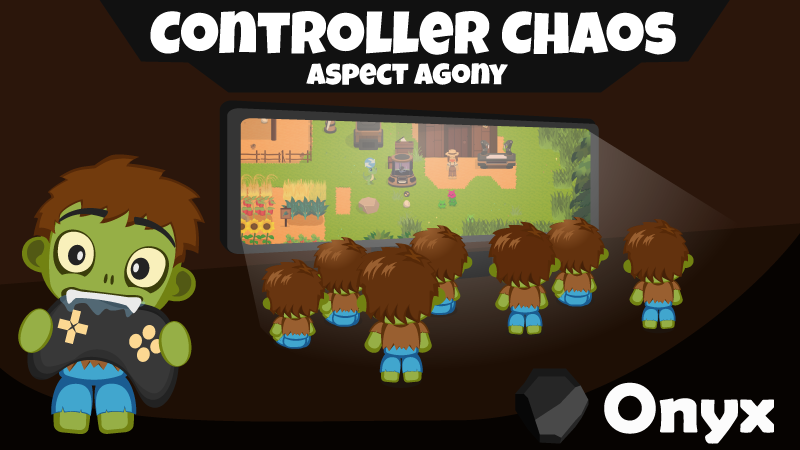
Gamepads
Okay okay okay.. Gamepads it is, then. I hear you.
By the way, it’s been fascinating to see how some of you managed to configure your gamepads to control the character well, even though Onyx didn’t provide the necessary tools for it yet.
I also must confess, while building this update, I actually really enjoyed playing with a gamepad. Thanks for that! ツ
But let's dive into it.
Long story short
The goal of these adjustments was to get a first prototype live for gamepad users to give it a try.
Various actions have been overhauled or now behave more intelligently.
In addition, a supportive auto-target feature has been added, which can be expanded as we go.
The character should now be fully controllable via gamepad, including combat, farming, dialogue navigation, shopping, and general exploration.
Some limitations remain for specific UI actions and potentially certain spell behaviors.
The D-Pad buttons combined with a modifier could either be made available for other actions or take over inventory functions.
Let's see how these adjustments feel once you put them to the test.
If something doesn't feel right, feel free to let me know.
Settings Controls Window
We have switched to a 1-modifier system to ensure consistent accessibility. All the usual mouse shortcuts have been adjusted to make sure they’re still available.
New Button Preset Keyboard/Mouse: Resets all bindings to the default settings.
New Button Preset Gamepad: Assigns the most important control actions to the standard gamepad buttons. I don’t usually play with a gamepad myself, so I hope these preset bindings provide a good starting point. ツ
The new controls
===========================
Exit
Note that this setting is fixed and cannot be changed via the in-game controls menu. Closes all open windows. If no menus are active, it opens the Game Menu.
K/M - ESC.
Gamepad - Button Start.
===========================
Modifier
K/M - Left Alt.
Gamepad - Trigger Left.
===========================
Interact
Interact with the object in front of the character. Opening containers, starting dialogues, picking plants.
K/M - E.
Gamepad - Button South.
In Build Mode: Rotate Structure.
Modifier: Splits the quantity of the selected inventory item in half. Mouse users can still also shift left-drag to split them.
Activate
Toggle the object in front of the character. Locking doors, activating Onyx machines.
K/M - F.
Gamepad - Button North.
In Build Mode: Toggle Grid Snapping.
While Shopping: Sells the currently selected inventory item. Mouse users can still also right-click items to sell them.
Modifier: Transfers the entire stack of the currently selected inventory item to another open public inventory. Mouse users can still also shift left-click on items to transfer them.
===========================
Execute Item
Execute the currently selected Item. Attack with weapons, use tools, plant seeds.
K/M - Mouse Left Click while cursor is outside the UI.
Gamepad - Button East.
Modifier: Drops the selected item from the inventory. Mouse users can still also drag n drop items out of the window.
Use Item
Use the currently selected Item. Equip equipment, learn recipes, consume food.
K/M - V. Mouse users can still also right-click items to use them.
Gamepad - Button West
Modifier: Separates one item from the stack. Mouse users can still also use ctrl left-drag.
===========================
Cast Spell
Cast the spell at the cursor's position or in its direction.
K/M - Mouse Right Click while cursor is outside the UI.
Gamepad - Right Stick Press.
Auto Target
Moves the cursor over the closest alive enemy target. Outside combat, it tries to focus on a logical UI position. Hold to keep the cursor locked. During archery or similar, for example.
K/M - C.
Gamepad - Trigger Right.
Modifier: Moves the cursor over the closest entity.
===========================
Quickbar Scroll
Scroll through Item Quickbar. Mouse users can still also left-click slots to select them.
K/M - Mouse Scroll.
Gamepad - Shoulder Triggers Right & Left.
Modifier: Scroll through Spell Quickbar.
Toggle Fists
K/M - X.
Gamepad - D-Pad Right.
Toggle Run
K/M - Shift.
Gamepad - D-Pad Left.
Toggle Sneak
K/M - Ctrl.
Gamepad - undefined.
UI Scroll
Cursor over scrollable UI Element.
K/M - undefined. Mouse users can always scroll.
Gamepad - D-Pad Up & Down.
===========================
Gamepad - Cursor Movement
Note that this setting is fixed and cannot be changed via the in-game controls menu.
Gamepad - Right Stick.
Gamepad - UI Click
UI Button Click on cursor position.
Gamepad - Right Stick Press.
While Shopping: Sell Items. Buy Items.
While Public Inventory: Moves stacks between the inventories.
===========================
Further adjustments
If a gamepad is active, weapon attacks and tool usage are automatically directed towards where the character is facing. This also applies to the use of name tags, leashes, and planting seeds.
The following overviews can now also be fully navigated using the right gamepad stick:
Calendar, Character Window, Crafting Window, Help Menu, Map, Pets, Quest Book, Shops, Reputations, Skill Trees, Spell Window.
Various descriptions and wording have been updated to also make sense for gamepad users. Some UI texts are still pending updates.
Further other improvements to controller support across various systems.
Not yet optimized for gamepad stick
These stick-only actions were not critical at the moment.
Use the stick on the start screen.
Select quickbar slots with the stick.
Give a gift to NPCs via drag-and-drop.
Speed up the zombie in the "Plate Panic" minigame.
Tile Highlighter
For certain items, the tile currently being targeted on the ground is now highlighted. This helps, for example, when using the hoe, the watering can, or when planting seeds. It is only active on your land and can be disabled in the settings if preferred.
UI & Resolution Support
I have no idea how you people play on 32:9 screens. It takes my mouse an eternity to get from one side to the other! ツ
InGame UI Improved UI scaling on ultra-wide and wider screen resolutions.
Start Screen / Character Creation A complete redesign of the archaic start screen is planned, so only minor tweaks were made here. On wider screens it may still look a bit stretched, but at least the UI no longer jumps straight into your face anymore.
Inventories & Quickbars
You can now toggle the inventory via the menu in the bottom-left corner.
Scrolling now works flawlessly through the entire inventory, regardless of the active view.
When sorting the inventory, matching items will now automatically be stacked together.
Mouse: Spell quickbar slots can now also be selected simply by clicking on them.
Help System
Now displays a hint explaining how to save the game right at the start.
Fixes
Walking past a vendor no longer accidentally closes the open inventory.
The character now only face the click direction when holding rotation-relevant items. This stops accidental misclicks from turning the character away from NPCs, which used to unexpectedly close dialogue windows.
Fixed an issue where character movement would freeze when using the hoe on tilled soil containing planted seeds.
Equipping or unequipping items that don't change the inventory size will no longer incorrectly auto-select the first inventory slot.
Source
Changelog.gg summarizes and formats this update. How we read updates.