
In this update15
Full notes
Full ConsoleMe update
Read the full published notes in a cleaner layout. The original post stays linked below.
What changed
- Gameplay
- UI and audio
- Store
- Maps
- Compatibility
ConsoleMe changes
Characters
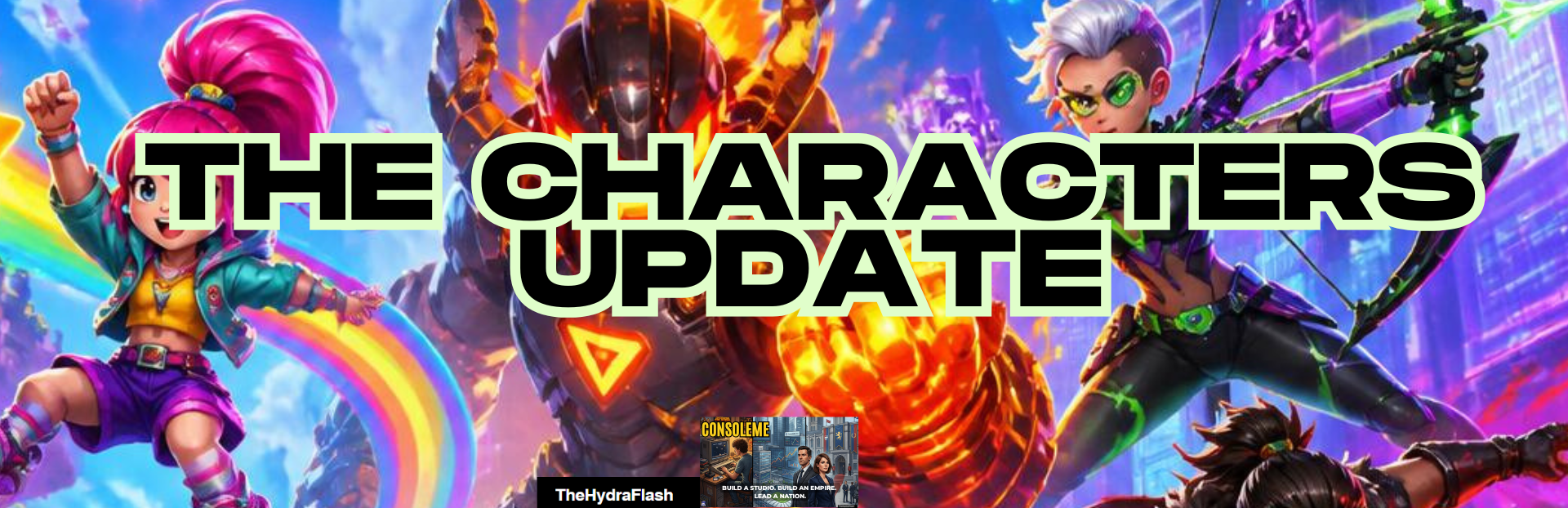
Build reusable company IP (heroes, villains, mascots, and more), track how fans respond over time, and cast the same characters across games and movies. Popularity grows when they appear in strong projects. Use them too often and fatigue builds up.
Getting started
When it unlocks: Week 8 of your company timeline.
How to open it: Studio → Products → Characters
You can also find it via the command/search palette using keywords like characters, IP, mascot, or hero.
First visit: If you have no characters yet, you will see an empty state with tips on identity, personality, and casting. Click Create character to begin.
Creating a character
Click path: Studio → Products → Characters → Create character
The creation wizard has four steps with a live portrait preview on the side.
Step 1: Identity
Name (required)
Description
Character type: Human, Animal, Creature, Robot, Alien, Monster, Supernatural, Mascot, or Abstract / object
Primary role: Main protagonist, Supporting hero, Villain, Rival, Sidekick, Mentor, Comic relief, Mascot, Love interest, or Ensemble member
Gender / presentation: Unspecified, Masculine, or Feminine
Age category: Child, Teen, Adult, Elder, or Ageless
Alignment: Heroic, Antihero, Villainous, Neutral, or Ambiguous
Intended audience: Kids, Teen, Mature, or All ages
Species: Preset options per type (Cat, Dog, Dragon, and others) or custom text
Franchise link (optional): Tie the character to a released game franchise, or leave them as an Independent character
Step 2: Personality
Pick traits from a 6-point budget
16 traits available (Brave, Intelligent, Funny, Loyal, and others), each costing 1 or 2 points
Opposing traits cannot be combined (for example, Serious and Funny)
A budget bar shows how many points you have left
Step 3: Visual theme
Procedural SVG avatar built from your choices, updated live as you edit
Upload portrait: Optional custom image (max 500 KB). Use Remove portrait to go back to the SVG avatar
Colour palette: 6 preset swatches
Modular builder across four groups:
Face & head: Face, Eyes, Headwear
Outfit: Clothing style, Upper layer, Lower layer, Footwear, Accessory
Body & silhouette: Build, Silhouette
Art direction: Art style (Cartoon / Realistic / Pixel), Technology level, Era theme
Options adapt to character type (a Robot gets different face options than a Human)
Step 4: Review
Summary of everything you chose
Click Create character to save
To edit later: Studio → Products → Characters → [select character] → Edit
The Characters hub
Once you have at least one character, the screen splits into two tabs: Characters and Groups.
Catalogue (left sidebar)
Click path: Studio → Products → Characters → Characters tab
Create character and Compare buttons (Compare needs at least 2 characters)
Search by name or description
Filters: Status (Active, Retired, Dormant, Rebooted, Licensed), Type, Role, and a Never used checkbox
Sort: Popularity, Brand value, Last used, or Name
Each list card shows a portrait, name, lifecycle stage, popularity score, and a mini meter
Character record (right panel)
Click path: Studio → Products → Characters → [click a character in the list]
The record panel keeps a stable layout when you switch between characters. Sections always stay visible, with empty placeholders when there is no data yet.
Hero section
Large portrait, name, description
Badges for type, role, lifecycle stage, and status
Actions: Edit, Retire, Restore active, Reboot, Add legacy appearance, Delete
Fan response
Attached audience, Fan loyalty, Audience satisfaction, Recognition (when fan data exists)
View audience links to Studio → Products → Community
Metric bars: Popularity, Recognition, Likeability, Brand value, Fatigue, Nostalgia, Controversy, Merchandise appeal
Popularity history sparkline when history exists
Appearance history
Total appearances, first and most recent weeks, or "Never used"
Up to 12 recent appearance cards with media title, week, media type, role size, redesign tag, and review score
Movie appearances show Portrayed by [talent name] when an actor was assigned
Recent changes
Cause log explaining metric shifts (successful release, poor release, genre mismatch, redesign backlash, nostalgia build, went dormant, rebooted, and others)
Shows metric deltas for each entry
Relationships
Linked characters with relationship type badges
Click a relationship card to jump to that character
Add relationship: pick another character and a type, then Add
Remove per relationship
Lifecycle stages (automatic)
Characters move through stages based on metrics and usage: New → Emerging → Popular → Breakout star → Iconic, plus Declining, Overexposed, Dormant, Nostalgic, Revived, and Retired. These appear on list cards and in the record panel.
Compare characters
Click path: Studio → Products → Characters → Compare
Pick any two characters from dropdowns and see side-by-side portraits and metrics: Popularity, Recognition, Likeability, Brand value, Fatigue (lower is better), and Merchandise appeal. The winning value for each metric is highlighted with readable dark text on a light green background.
Legacy appearances
Click path: Studio → Products → Characters → [select character] → Add legacy appearance
Backfill history from before the character was added to your catalogue:
Project or media title
Media type (Game, Movie, TV, Publishing, Merchandise, Marketing campaign, Crossover)
Role size (Major, Supporting, Minor, Cameo)
Release week (1 to current week)
This records history only. It does not re-run full simulation effects.
Relationships
Click path: Studio → Products → Characters → [select character] → Relationships → Add relationship
Relationship types:
Allies, Rivals, Enemies, Family, Team members, Mentor & student, Romantic connection, Recurring pairing
Each pair can only have one relationship. Links are bidirectional. Use these to organise your studio's lore and recurring casts.
Character groups
Save reusable casts (like a platform hero squad) and bulk-add them when starting projects.
Manage groups: Studio → Products → Characters → Groups tab
Create group: Name, optional description, pick active (non-retired) members from a checklist with portraits
Group cards show name, member count, and a portrait strip (first 4 characters, plus a +N badge if more)
Edit or Delete from each card
Use in casting: See Casting below. The Add from group… dropdown appears in project wizards when you have at least one usable group.
Casting characters in projects
Casting is optional. You can ship projects with no characters attached.
Limit: Up to 6 characters per project.
New games, remakes, and DLC
Click path: Studio → Products → Projects → New Project → [complete wizard steps] → Review
On the final Review step, the Cast characters panel appears when you have at least one character in your catalogue.
For each cast member you can set:
Role in project: Protagonist, Supporting hero, Villain, Sidekick, Mascot, Ensemble, Recurring guest
Screen presence: Major role, Supporting, Minor, Cameo
Redesign checkbox (risky visual change that can affect reviews and fan loyalty on release)
Add characters individually: Use the Add character dropdown.
Add a whole group: Use Add from group… to merge all available group members at once. Each gets their primary role and Supporting screen presence by default. Characters already in the cast or retired are skipped. If the group would exceed the 6-character cap, you get a notification and only the first available slots are filled.
Movies
Click path: Studio → Products → Movies → Create Movie → Cast & Crew (step 6 of 7, before Review)
Same cast picker as games, plus movie-specific options:
For major roles, protagonists, or villains: assign Portrayed by from your actor talent pool
The Review step lists each cast character with performer name or screen presence
Note: Create TV Series does not include character casting yet.
What happens when you release a project
When a game or movie ships with cast members attached, the simulation updates behind the scenes. You see the results on the Characters screen, not in the release celebration popup.
Pre-release (games):
Cast boosts project hype based on recognition, genre fit, and fatigue
Fatigue and redesign choices can reduce the bonus
On release:
Each cast member gets an appearance record in their history
Metrics update: popularity, recognition, likeability, brand value, fatigue, merchandise appeal, and others
Strong releases boost metrics. Poor releases or genre mismatches hurt them
Redesign on a cast entry can boost recognition but add controversy and hurt core fan loyalty
Movie cast entries store the assigned Portrayed by talent
Over time:
Fatigue rises with each appearance, scaled by screen presence and recent frequency
Fatigue decays after roughly 8+ weeks without use
Characters can become Overexposed when fatigue is high and recognition is strong
Characters go Dormant after long periods without use (if they had meaningful recognition before)
Brand value combines recognition, popularity, likeability, quality reputation, and merchandise appeal, penalised by controversy and fatigue
Fan integration
Each character syncs to your fan audience data.
Click path: Studio → Products → Characters → [select character] → Fan response → View audience
This opens Studio → Products → Community, where you can see how that character's attached audience is doing.
Founder Assistant tips
The weekly briefing can surface character advice when relevant (up to 5 tips at a time):
"[Name] is fatigued — consider resting or cameo-only use"
"[Name] is dormant with nostalgia — a quality revival could pay off"
"[Name] appeared too often recently — fans may be tired"
"[Name] has potential but hasn't appeared yet"
Click path: Home → Weekly Brief (or Founder Assistant) → Open Characters
Reboot a character
Click path: Studio → Products → Characters → [select character] → Reboot
Sets status to Rebooted, reduces fatigue, adds momentum, and logs the change. Use this for a fresh creative direction without deleting appearance history.
Other character actions
| Action | Click path |
|---|---|
| Retire a character | Characters → [select] → Retire |
| Restore a retired character | Characters → [select] → Restore active |
| Delete a character | Characters → [select] → Delete (also removes them from any groups) |
| Compare two stars | Characters → Compare |
| Manage cast groups | Characters → Groups → Create group |
| Cast in a new game | Projects → New Project → Review → Cast characters |
| Cast in a movie | Movies → Create Movie → Cast & Crew |
| Backfill old history | Characters → [select] → Add legacy appearance |
Languages
The full Characters feature is translated in English and German, including the wizard, hub, metrics, cast picker, groups, compare modal, legacy appearances, tips, and toasts.
Quick tips for new players
Start early. Characters unlock at week 8. Create one or two icons before your first big greenlight.
Cast on the Review step. Games, remakes, and DLC all support casting on the final New Project step.
Watch fatigue. Rotate characters or use cameo-only roles for tired stars.
Save groups for recurring squads. Platform mascots, hero teams, and villain rosters are one click away in project wizards.
Use legacy appearances to give veterans a backstory before you started tracking them.
Check the cause log after releases to see exactly why popularity moved.
Source
Changelog.gg summarizes and formats this update. How we read updates.