
HomeGamesUpdatesPricingMethodology
Steam News24 November 20257mo ago

Version 1.9 - Custom Set CSV File Importing and Exporting

Hi everyone, I hope you all are doing well! It has been a while since I did an update. I have been busy with starting a full-time job + dealing with personal circumstances.

In this update5

Full notes

Full Kana Seito Defense update

Read the full published notes in a cleaner layout. The original post stays linked below.

What changed

1 fix4 additions1 change0 removals
  • Gameplay
  • UI and audio
  • Fixes
addedCustom Set CSV Exporting and ImportingIn this update, you can now export custom study sets as CSV files as well as import them as long as they follow some formatting requirements. See details below.
addedReminder of where you can access your custom setsYou can access the UI panel to add/view/edit custom sets through 2 ways : 1.) Main Menu -> Dictionary -> Your Custom Curated Sets
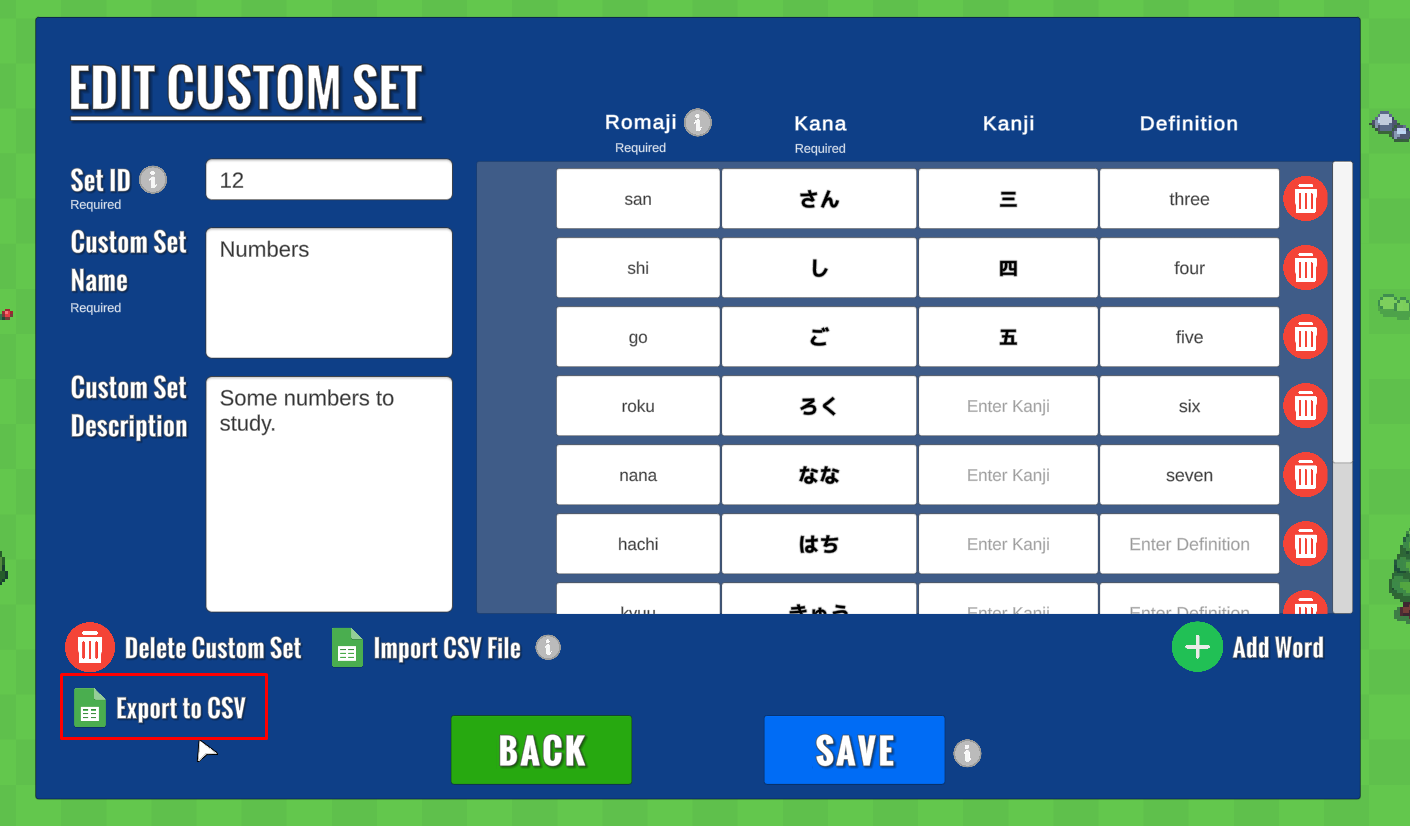
addedExportingWhen editing custom sets, you can now export them as a CSV file. There is a button below the Delete Custom Set button to do this.
addedImportingThere is now an option to import CSV files from your local device when you are editing or adding a custom set. By clicking the Import CSV File button, you should see your file explorer pop up in which you can select a particular CSV file to import.
changedImportingIn order for the CSV file to import correctly, there are some formatting requirements . You can see them by clicking the gray info icon button to the right of the Import CSV File button which will display an example as shown below.
fixedOther changes in this updateFixed a bug where changes to Custom Set words wouldn't save correctly

Kana Seito Defense changes

addedIn this update, you can now export custom study sets as CSV files as well as import them as long as they follow some formatting requirements. See details below.
addedYou can access the UI panel to add/view/edit custom sets through 2 ways : 1.) Main Menu -> Dictionary -> Your Custom Curated Sets
addedWhen editing custom sets, you can now export them as a CSV file. There is a button below the Delete Custom Set button to do this.
addedThere is now an option to import CSV files from your local device when you are editing or adding a custom set. By clicking the Import CSV File button, you should see your file explorer pop up in which you can select a particular CSV file to import.
changedIn order for the CSV file to import correctly, there are some formatting requirements . You can see them by clicking the gray info icon button to the right of the Import CSV File button which will display an example as shown below.

Hi everyone,

I hope you all are doing well! It has been a while since I did an update. I have been busy with starting a full-time job + dealing with personal circumstances.

Custom Set CSV Exporting and Importing

In this update, you can now export custom study sets as CSV files as well as import them as long as they follow some formatting requirements. See details below.

Reminder of where you can access your custom sets

You can access the UI panel to add/view/edit custom sets through 2 ways: 1.) Main Menu -> Dictionary -> Your Custom Curated Sets

2.) Main Menu -> Play (opens the level selection menu) -> Build / Play Custom Study Sets

Exporting

When editing custom sets, you can now export them as a CSV file. There is a button below the Delete Custom Set button to do this.

Note that you should save any changes to your custom set before exporting.

The CSV file should result in a table looking something like this (shown in Google Sheets):

Importing

There is now an option to import CSV files from your local device when you are editing or adding a custom set. By clicking the Import CSV File button, you should see your file explorer pop up in which you can select a particular CSV file to import.

In order for the CSV file to import correctly, there are some formatting requirements. You can see them by clicking the gray info icon button to the right of the Import CSV File button which will display an example as shown below.

  • Header is optional. However, if you do include it, make sure that you include Romaji and Kana as header text

  • Romaji (as the first column) and Kana (as the second column) are required. Any row missing either one or both will be skipped when importing

  • Kanji (as the third column) and Definition (as the fourth column) are optional

It is suggested to use some popular tabular programs like Google Sheets or Microsoft Excel to generate CSV files instead of manually creating them in order to avoid any extra potential formatting issues.

Other changes in this update

  • Fixed a bug where changes to Custom Set words wouldn't save correctly

Thanks for playing the game!

Source

Steam News / 24 November 2025

Open original post

Changelog.gg summarizes and formats this update. How we read updates.