
Full notes
Full EXA: The Infinite Instrument update
Read the full published notes in a cleaner layout. The original post stays linked below.
What changed
- UI and audio
- Gameplay
- Store
- Performance
- Events
- Fixes
EXA: The Infinite Instrument changes
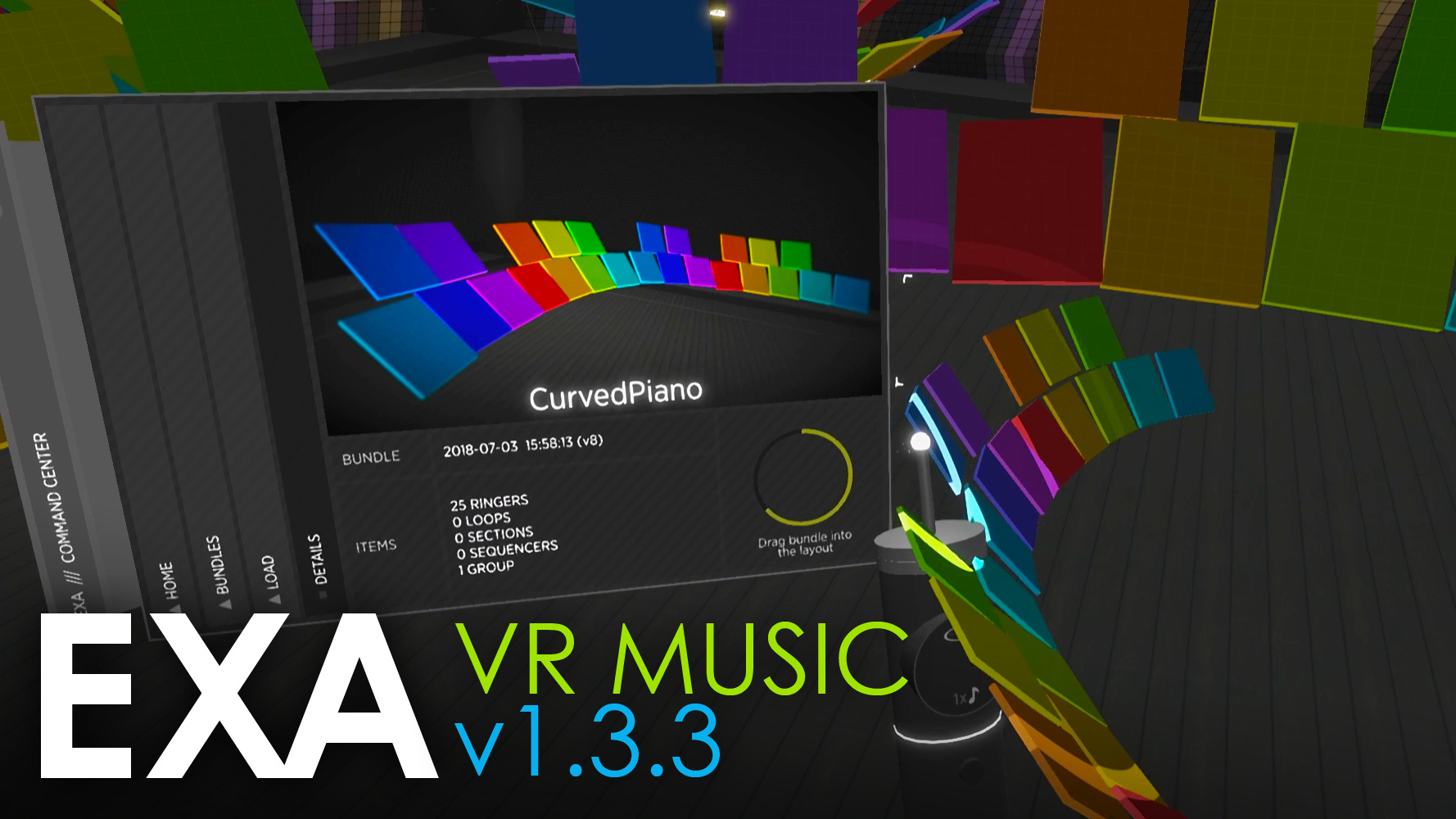
The new EXA Command Center has arrived, and you can summon it to your current position with the touch of a button. The Command Center interface consolidates previous menus, improves workflows, introduces a new drag-and-drop creation feature, and is able to summon other interfaces (like the loop recorder). Have you ever designed an EXA instrument, only to wish you could reuse it elsewhere? Now you can! The new “Bundle” features allow you to save and load collections of items, including ringers, groups, loops, sequencers, and more. The new drag-and-drop interaction allows you to pull a miniature bundle from the menu and place it (fully-sized) directly into your layout. This release also includes support for MixCast 2.0, an internal upgrade to the latest version of Unity, some new visual settings, and several other fixes/improvements. Thank you to the EXA community for the feedback and ideas! Please watch/share the new update video below, and read through this page to learn more.
DEV UPDATE VIDEO
https://www.youtube.com/watch?v=-PyhvJePFG4 (https://www.youtube.com/watch?v=-PyhvJePFG4)
SHARE EXA
Twitter: Release Announcement
Facebook: Release Announcement
COMMAND CENTER
Created a “Command Center” menu with a brand-new interface design. The Command Center consolidates the previous “App” and “Layout” menu features, takes up less space, and incorporates several new features.
At any time, the Command Center interface can be summoned to the player’s current position by pressing the controller’s “menu” button. The EXA handles show a new icon to identify this button. (For Vive: the small button above the touchpad. For Oculus Touch: the third button on the left-hand controller.)
Improved upon the previous menu design with the Command Center’s auto-sizing, tablet-like format. Instead of extending sub-menus to the right (which previously got quite wide for menus like saving and loading layouts), the sub-menus now replace their parent menu, resizing the content area to fit the content. Tall, thin buttons appear to the left of the menu content, allowing the player to navigate one or more steps up the menu hierarchy.
The Command Center uses a new drag-and-drop interaction for creating new items. Certain menus will display a miniature version of an item (a sequencer, for example) floating slightly above the menu’s surface. To add this item to the layout: Grab the miniature item and pull it away from the menu. This makes the item grow larger and causes its circular indicator to fill up. When the indicator is filled, it glows green, and the item is fully sized. At this point, the item will be added to the layout (at its current position) when the grab is released. If the grab is released before this point, however, the item will revert back to its miniature state. (And don’t forget, you can use the controller’s “grip” button/trigger to grab!)
Instead of using buttons, the Command Center’s “Create” menu uses the new drag-and-drop feature, showing miniature versions of a section, sequencer, and document.
The Command Center’s “Create” menu also includes the menu for creating a new group. This works the same as before: select several items, toggle the menu’s checkboxes to include/exclude certain item types (if necessary), then use the “Create Group” button at the bottom.
The Command Center’s “Summon” menu introduces a new feature that can automatically move certain items to the menu’s current position. The menu can summon the loop recorder, the metronome, and the three tool racks. This avoids the need to teleport/slide around the layout to find these interfaces and move them around – providing a faster and more efficient workflow.
Separated the MIDI options out of the “Settings > Audio” menu (formerly: “App > Audio”), and into its own “Settings > MIDI” menu.
Added new “About” menu, which notes the current version and provides several helpful tips in the “Did You Know?” area.
ITEM BUNDLES
A “bundle” is a collection of items (ringers, loops, groups, etc.) that can be saved/loaded independently of the current layout (the entire set of items, interfaces, and tools in the scene). Previously, it was only possible to save/load entire layouts.
To save a new bundle, first select all the items that the bundle should contain. Use the “Bundles > Save” menu (in the new Command Center) to review the bundle’s contents, add a title, and take a thumbnail photo. Select the “Save Bundle” button to complete this process. Just like the layout-saving menu, a popup with an “overwrite” option will appear if the bundle name is already in use.
When saving a new bundle, note that the bundle’s contents (listed in the “Bundles > Save” menu) may be larger than the actual item selection. The bundle automatically includes dependencies from the selected items – for example, a selected group will include the items within that group, a selected sequencer will include the items it links to, and a selected loop will include its target ringers. This ensures that all the items will be fully functional when the bundle is loaded again.
To load a saved bundle, use the “Bundles > Load” menu (in the new Command Center) to browse the available bundles. If there are many, use the paging buttons at the bottom of the menu to see more. Select the desired bundle to enter its “Details” menu, then select the “Prepare Bundle” button. The bundle may take a moment to build itself, but its miniature will soon appear. Use the new drag-and-drop feature to add the bundle to the layout.
Once the bundle is placed into the layout, the overall “bundle grouping” is removed. The individual items are no longer considered to be part of a bundle – they are now part of the layout and behave like regular items.
When using the drag-and-drop feature to add a bundle to the layout, note that the layout-boundary restrictions still apply. Upon releasing the bundle, each item (or group, if the items are grouped) that is positioned outside the boundary will automatically be pushed inward.
The drag-and-drop feature uses the grab position (when grabbing the miniature item) as the item’s pivot point. In other words, the miniature item grows as if the original grab position is the center of the item. This is especially noticeable with bundles, since their miniature versions are often scaled down substantially to fit within the bundle menu – thus, their growth to full size is more pronounced. In some cases, grabbing the miniature a specific position (for example, near the edge of a group of ringers) can make it easier to drop the bundle at the desired position within the layout.
Internally, a saved bundle uses a JSON format that is very similar to a saved layout. This text-based format makes it possible to manually create/modify bundles outside of EXA. For example, it would be possible to modify the position values of a bundle’s ringers to make them perfectly aligned into a grid.
OTHER
Upgraded to MixCast 2.0.2, which includes various improvements and new features for creating mixed-reality videos, streams, and live performances.
Upgraded to Unity 2018.1 and now using .NET 4.6. Among other things, this allows EXA to use some more modern multi-threading techniques and classes, which may help resolve some infrequent bugs.
Due to the note above, EXA Remix now requires projects to use Unity 2018+ and enable .NET 4.6 (which is no longer marked “experimental”).
Added “Show ‘Tunnel Vision’ For Slide Locomotion” toggle to the “Settings > Visual” menu. This controls whether peripheral vision is restricted while turning, which can help make the motion more comfortable for some players.
Improved the slide locomotion “tunnel vision” so that it fades into view more smoothly.
Added "High-Quality Desktop Display" toggle to the “Settings > Visual” menu. Removed the 'C' keyboard shortcut.
Updated the high-quality display to skip its motion-smoothing when performing a teleport.
Implemented a one-frame blank camera during the teleport (for both headset and desktop display) to avoid a flicker of the handles appearing in their pre-teleport position.
Added the display of a "No VR headset was detected" message when no headset is available.
FIXES
Fixed issue causing loop playback, driven by a sequencer, to skip events within the last quarter-beat of the loop.
Fixed issues that caused "mute-hit" events occurring on the loop "cap" beat to be ignored.
Fixed issue causing the audio exporter to miss "mute-hit" events that occur on the loop's cap beat.
Fixed issue causing samples to stop prematurely when played "in-progress", which can occur when jumping a sequencer to playhead positions.
Fixed sequencer issue causing loops to read events that occur a fractional beat before the sequencer's start event.
Fixed issue causing the loop to play extra/incorrect notes when the sequencer range’s end/rollover occurs on the same beat as the loop's end/rollover, but the range starts after the loop start (i.e. the sequencer range rolls over into an “in-progress” loop position).
Fixed issue that caused the sequencer playback to go silent until rollover when dragging the range start to the current playhead beat.
Fixed issue causing sequencer's loops to play excess sounds when dragging the start range beyond the playhead.
Fixed issue that occurs when a loop (with recorded motion) includes a "link" tool attached to a handle.
Fixed issue that prevented “stopping” or “fading-out” bow/prox notes from correctly relinquishing their slot (when necessary) in the “max voices” system.
Fixed issue when trying to load a layout while in the process of drawing a new ringer. The load/save actions are now prevented while drawing is active.
PATCH 1
Upgraded to the latest version of the Steamworks .NET package to ensure compatibility with the latest Steam/SteamVR API.
Fixed issue causing a near-immediate freeze (of EXA, Steam, and SteamVR) once you start hitting ringers. This issue was noticed in SteamVR Beta, and then it moved into the main version of SteamVR on about July 26.
Source
Changelog.gg summarizes and formats this update. How we read updates.