
In this update15
Full notes
Full Embers of the Uncrowned update
Read the full published notes in a cleaner layout. The original post stays linked below.
Repeated intro
Hello, Embers.
What changed
- Compatibility
- Gameplay
- UI and audio
- Fixes
- Balance
Embers of the Uncrowned changes
The Steam Next Fest demo launches June 15. This guide walks through the controls, combat, and core systems you'll need on your first journey through Goldenhaven and beyond.
1. Basic Controls
You can control your character using mouse and keyboard, or a controller (Xbox). Familiarize yourself with the basic controls below for a smoother experience.
※ Note: Embers of the Uncrowned is optimized for keyboard and mouse. Controller gameplay is currently in beta.
1.1 Keyboard Controls
◆ Basic Keyboard and Mouse Controls
The main control hotkeys for Embers of the Uncrowned are as follows:
Basic Controls
| Function | Hotkey |
|---|---|
| Move Forward | W |
| Move Backward | S |
| Move Left | A |
| Move Right | D |
| Basic Attack | Left-click |
| Rotate Camera | Right-click |
| Evade | Space Bar |
| Rotate Camera Left | ← |
| Rotate Camera Right | → |
| Zoom In | ↑ |
| Zoom Out | ↓ |
Combat Controls
| Function | Hotkey |
|---|---|
| Active Skill Slot 1 | Q |
| Active Skill Slot 2 | E |
| Active Skill Slot 3 | R |
| Active Skill Slot 4 | T |
| Active Skill Slot 5 | F |
| Bloodline Skill Slot | V |
| Use HP Potion | 1 |
| Use MP Potion | 2 |
You can find more hotkey information under Settings → Controls → Keyboard.
◆ Hotkey Settings
You can change your hotkey settings in Settings → Controls → Keyboard. Hotkeys can be combined with Ctrl, Shift, and Alt. Note that certain hotkeys cannot be changed.
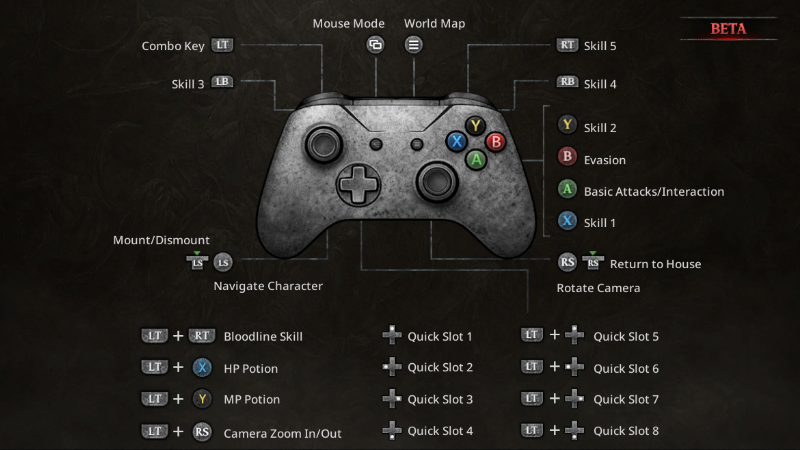
1.2 Controller Controls
Embers of the Uncrowned offers partial controller support. Some functions, such as chat, still require a keyboard and mouse.
◆ Supported Controllers
Currently, only Xbox controllers are partially supported. Other controllers may not operate properly.
◆ Auto-Switch
The game automatically detects whether you're using a keyboard/mouse or a gamepad, and switches the control mode accordingly.
It switches to gamepad mode when it detects gamepad input, and back to the default mode (keyboard/mouse) when it detects keyboard or mouse input. If both are detected simultaneously, the default control mode takes priority.
◆ Dual Control States
The gamepad mode has two states — one for controlling your character, and one for navigating menus.
Character Control: The default state where you move your character and battle with the L stick.
Menu Navigation: The state where you control the cursor with the L stick to navigate menus.
When a popup appears or when you enter specific scenes, the game automatically switches to Menu Navigation. Pressing the [Mouse Mode] button while in Character Control switches to Menu Navigation, and pressing it again switches back to Character Control.
◆ Controller
Controllers can only be used with fixed controls and cannot currently be customized.
You can check the image above in the Settings → Controls → Gamepad menu in-game.
2. Combat
Combat is built around three core actions: basic attacks, skills, and evasion. You can use recovery potions to recover your HP and MP. In battles with boss monsters, use Interrupt skills to block powerful attacks, and Stagger the boss to deal significant damage.
◆ Recovery Potions
Monuments of Life can be found both in your House Settlement and across the continent. Refill your HP and MP potions at these Monuments.
Defeating monsters has a chance to replenish your potions — the stronger the monster, the higher the chance. Potions can also be replenished by using the Bloodline Skill or destroying Elven Stakes.
◆ Evade
You can evade dangerous attacks using evasive skills. When you press the spacebar, your character moves a certain distance in the direction they are facing and becomes briefly immune to attacks. If you perfectly evade an enemy attack, it counts as a Perfect Dodge.
The SP gauge consists of multiple segments that recharge automatically over time. Each segment is consumed when you use an evasive skill, so manage your SP gauge for crucial moments.
◆ Interrupt Skills
Boss monsters periodically cast powerful skills.
While the boss prepares its skill, a purple gauge fills up at the bottom of the monster information UI. Attack the boss with a skill that has the Interrupt tag within the time limit to stop the skill from activating — and greatly reduce the boss's Stagger gauge.
Interrupt skills are marked with a purple diamond icon and an Interrupt tag.
◆ Stagger
Every time you deal damage to a boss monster, its Stagger gauge decreases slightly. When the gauge is fully depleted, the boss becomes Staggered for a short time.
While Staggered, the boss cannot attack or act. Focus your attacks during this window to deal massive damage.
3. Companion
In Embers of the Uncrowned, you battle alongside a Companion who follows you throughout your journey.
You can raise Companion affinity by completing Companion quests at the House Settlement. Once affinity reaches a certain level, the Companion button in the upper-left corner of the HUD will start to glow — click it to level up your Companion.
You can obtain Companion skills upon raising their levels. Use the Companion skill management menu to select which to equip. Companion skills consist of active and passive skills — you can equip 1 active skill and multiple passive skills.
Companions will be temporarily unsummoned when you ride a Mount or enter certain content areas. If a Companion dies in battle, they will be temporarily unsummoned and then automatically resummoned.
4. Bloodline Skill
You can use the Bloodline Skill — a powerful cooperative attack performed with your Companion. To use it, you must first fill up your Bloodline Points. You gradually gain Bloodline Points during battle, but no additional points are gained once they reach 100%.
When you use the Bloodline Skill, you consume all Bloodline Points. Bloodline Points are saved even when you leave the game. Using the Bloodline Skill also grants you a certain number of recovery potions.
5. Skill Gems
You can enhance your skills by equipping them with Skill Gems.
As you play, you will obtain Skill Gems of various grades and options that strengthen your skills.
Equip the Skill Gems you have obtained in your bag by dragging them into Skill Gem slots in the skill menu.
Every skill and Skill Gem has unique effect tags, and a Skill Gem can only be equipped if it shares at least one tag with the skill. When you equip a Skill Gem, only the matching tag effects will be applied. For example, if a Skill Gem has Physical/Wind tags and the skill it is equipped to has Wind/Buff tags, only the effects associated with Wind are applied.
Hold the Ctrl key while the skill menu is open to see the number of effects linked from equipped Skill Gems for each skill tag. Note that Common effects are not shown in the skill tags even when you hold Ctrl, because they can be equipped to all skills.
You can also check the Skill Gem's item details to see which effects are active or inactive.
6. Talent
You can strengthen your character by unlocking Talent nodes.
A Talent is composed of multiple Talent nodes. Unlock each node to obtain or enhance a skill. Talent nodes are linked to one another — every node after the first can only be activated once you've unlocked at least one of its prerequisite nodes.
Some nodes cannot be activated after you unlock certain nodes, so choose a Talent tree that fits your character build. Talent nodes can be reset and redistributed, so plan your progression strategy according to the situation.
7. House
You will develop a Settlement as the lord of the House. Construct buildings in your House Settlement to unlock a range of activities — crafting, gathering, research, and trade.
◆ Followers
As you play, you will meet Followers who help build your House. Followers can construct buildings and be assigned to them to activate each building's functions.
If Followers are assigned to the Resource Station, they will gather the resources needed for building construction or crafting items.
Followers with special abilities may provide benefits — such as reduced costs — when participating in various activities.
◆ House Buildings
Construct buildings in your House to unlock a range of activities.
As of now, the following seven types of buildings can be built and used.
| Building | Description |
|---|---|
| House HQ | The core building for overall House growth. Upgrading the House HQ allows you to further upgrade other buildings. Upgrade the House HQ by increasing your House Level. |
| Forge | Enhance Gear through Followers assigned to the Forge. Enhancing Gear consumes enhancement materials, which can be obtained through hunting or the Trading Post shop. Upgrading the Forge allows you to enhance Gear to higher grades. |
| Trading Post | Assign Followers to purchase items or exchange gathered resources for other items. Upgrading allows you to Trade. Unlock Trade Points through region liberation — each Trade Point offers different items. |
| Resource Station | Assign Followers to gather resources. When a region is liberated, Gathering Points activate and Followers gather automatically. There are four resource types; the number of simultaneous Gathering Points is determined by the upgrade level. |
| Magic Laboratory | Assign Followers to research recovery potions or craft elixirs. Potion research increases your potion capacity and recovery effects. Elixirs grant various beneficial effects for a set duration. |
| Workshop | Assign Followers to craft Skill Gems. Upgrading allows you to craft higher-grade Skill Gems. |
| Stable | Assign Followers to register and switch between acquired Mounts. Summon your Mount by clicking the Mount icon or pressing its hotkey. |
◆ House Legacy
House Legacy is a secret power passed down through House Harborwell.
You can access the House Legacy system through the phoenix statue in your Settlement.
※ Currently in the demo build only Bloodline feature is available.
◆ Bloodline
You can increase your House Level by raising the reputation of your House. When the House Level increases, you obtain House Points — which can be consumed to awaken the power of Bloodline.
Bloodline consists of Bloodline boards and Bloodline nodes.
A Bloodline board consists of multiple Bloodline nodes. When you unlock a Bloodline node, you obtain the power of that node. When you complete a board, you can unlock the next one.
Each board provides different stats, so choose a board of your preference to enhance your character.
8. Download and System Requirements
For a smooth experience, please check the system requirements below.
| Category | Minimum | Recommended |
|---|---|---|
| OS | Windows 11 (64bit) | Windows 11 (64bit) |
| Processor | Intel i5-3570 / AMD FX-8350 | Intel i5-9600 / AMD Ryzen 5 2600X |
| Memory | 8 GB RAM | 16 GB RAM |
| Graphics Card | NVIDIA GeForce GTX 1060 / AMD RX 580 / Intel Arc A380 | NVIDIA GeForce RTX 2060 / AMD RX 5700 XT / Intel Arc A770 |
| DirectX | Version 11 | Version 11 |
| Network | Broadband Internet connection | Broadband Internet connection |
| Storage | 30 GB or more | 30 GB or more |
That's everything you need to know to get started.
The continent of Rinea won't reclaim itself — and your fallen house is waiting.
We'll see you in Goldenhaven on June 15.
For the latest updates and community discussion, join us on our official Discord and follow our channels below.
This guide was written on June 8, 2026, and some content may change in future updates. -
The Embers of the Uncrowned Team
Source
Changelog.gg summarizes and formats this update. How we read updates.