
Update log
Full World of Warships update
The complete published notes, normalized for clean reading and source attribution.
Extracted changes
- UI and audio
- Gameplay
- Performance
The graphics and audio in World of Warships are constantly being refined and polished.
Accordingly, the game’s customizable settings are also changing to reflect this. For example, we have recently updated the basic graphics setting options, so you can safely set a preset that suits your computer before you enter battle. Even though we recommend rolling with the settings automatically chosen by the client based on your system, we also encourage you to familiarize yourself with the relevant in-game menu that can help your tailor the sights and sounds of the game to your exact liking.
The settings menus are quite extensive, though, and it’s not always clear what every little option means. Read this article to find out! We're going to explain the meaning of some of the more enigmatic terms, as well as tell you about some useful settings for graphics and audio that you can use. You can find all the necessary information about control settings in the Training section on our website.
| Graphics Audio |
|---|
[hr]
Graphics
Much of what you see on your screen while playing World of Warships can be changed in the settings menu:
While in Port, click on the gear in the upper-left corner of the screen and select Settings in the game menu.
During battle, you can press the Esc key and select Settings in the game menu.
General settings
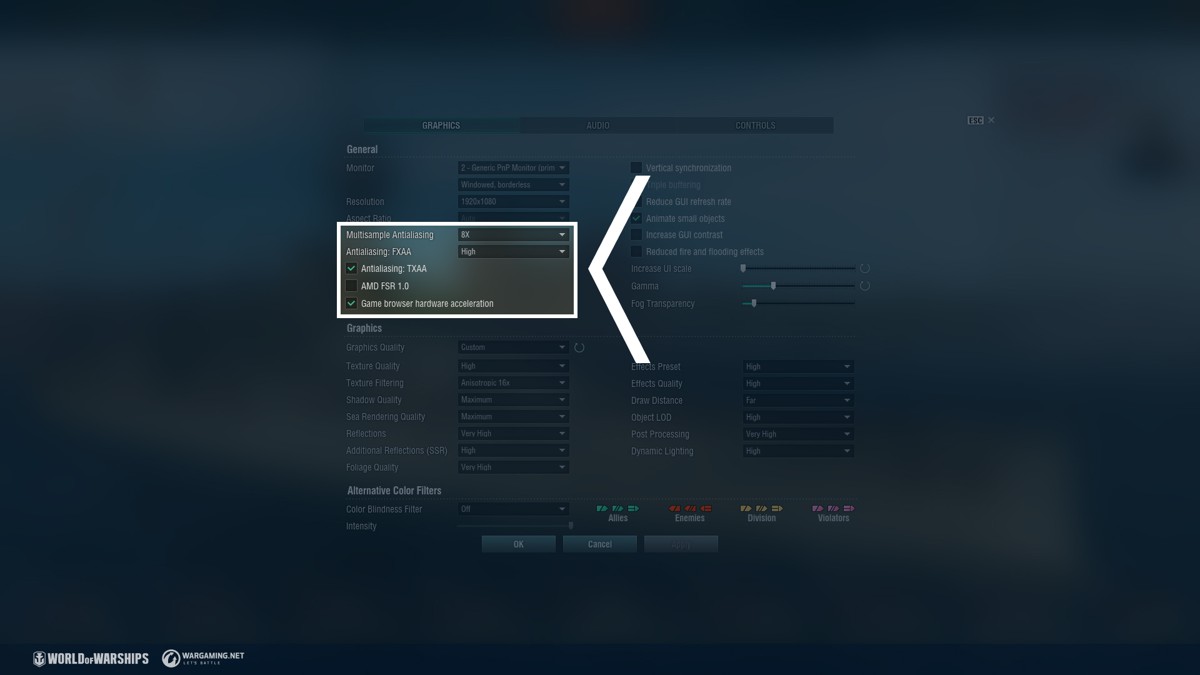
Antialiasing is a technique used to eliminate the "jagged" effect that occurs at the edges of many separate objects that are displayed at the same time. Let's take a look at all three types:
MSAA: More pixels are processed to get better quality. This is a rather "heavy" setting that can dramatically affect game performance, so it needs to be used wisely. The 8x option will provide the best image quality, but it is also the most resource-intensive.
TXAA is a complex process that uses prior frames to produce a smoother image. This technique allows you to reduce crawling and flickering. The effect is especially visible for small details like forests on islands.
FXAA is a mature technology that does not lose its effectiveness. It is similar to MSAA, but more pixels are calculated only at the edges of 3D objects. It can even be used on computers with modest characteristics.
The AMD FSR 1.0 * scaling technology upscales the image resolution from lower to higher resolution. In practice, it can be very useful when playing, for example, on a laptop. It helps you significantly reduce the load on your processor and video card, and there will be no noticeable visual difference on a small screen.
* This technology is not supported by all models of video cards.
Game browser hardware acceleration is enabled by default for all users and provides acceleration on any configuration. The option should be disabled only if the Armory or News is not displayed due to errors in the implementation of the video card driver.
Vertical synchronization is a classic setting used in the vast majority of PC games. It allows the video card to operate with less power and reduces its temperature and noise, as well as reduces power consumption.
Triple buffering increases the consumption of video memory, but allows you to smooth out small bumps due to different rendering times for successive frames.
Increase GUI contrast: Translucent backgrounds of UI elements are replaced with solid fills.
There are also several settings in the menu that can be useful for computers with modest characteristics:
Reduce
Source