
Full notes
Full Whispers in the West - Co-op Murder Mystery update
Read the full published notes in a cleaner layout. The original post stays linked below.
What changed
- Gameplay
Whispers in the West - Co-op Murder Mystery changes
The Twitch integration enables your audience to interact with you in the game through the Twitch chat.
Your viewers can prompt you to ask about something or someone by typing in the chat command "!ask [a character or a letter]"
Your viewers can vote on the answers by using the chat command "!vote [a character or a letter]"
Get the OAuth code for your Twitch account
Go to https://twitchapps.com/tmi/ in the browser where you are logged in with your Twitch account.
Click "Connect".
On the next page, "Authorize" the Twitch Chat OAuth Token Generator app to read your channel's chat messages.
Then, you should see an OAuth token starting with "oauth".
Copy this token (including "oauth:").
To remove the permission, go to Twitch settings.
Enter the OAuth code in Whispers in the West
Launch Whispers in the West from Steam
On the case selection screen, click the gear icon on the top right.
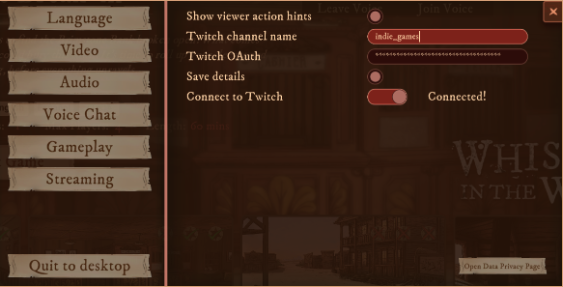
Then go to "Steaming"
Enter the name of your Twitch channel, and the OAuth token you copied in the previous step.
Optionally, you can save your token in the game.
Slide the "Connect to Twitch" toggle to the right
Once you see "Connected", start a game and your audience will be able to interact with you
Source
Changelog.gg summarizes and formats this update. How we read updates.