
In this update4
Full notes
Full Thrifty Business update
Read the full published notes in a cleaner layout. The original post stays linked below.
What changed
- Store
- UI and audio
- Gameplay
- Events
- Fixes
Thrifty Business changes
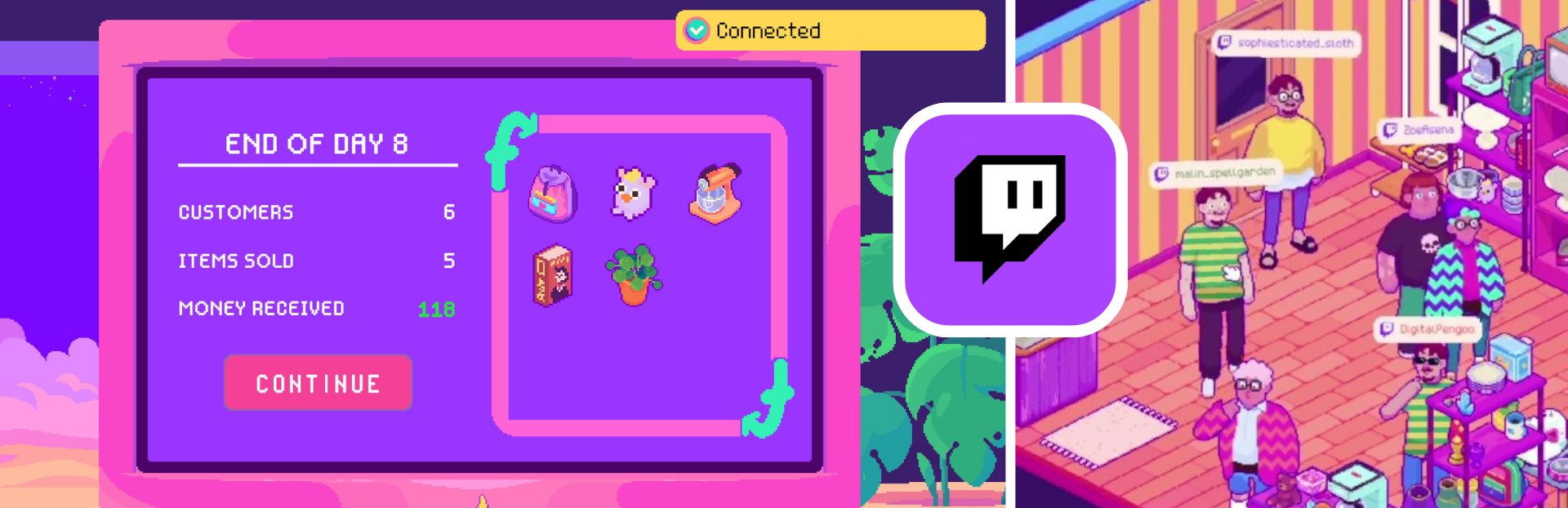
Are you ready for a little bit of cozy chaos excitement? We just updated the Thrifty Business Demo to include a Twitch integration that lets viewers visit your shop, drop trash and donate unwanted items!
The update also includes localization so you can now play the demo in 9 different languages and we’ve fixed a number of bugs and made smaller tweaks and improvements. You can find a full list of the patch notes at the end!
And now let’s talk Twitch Integration:
Streamers: How to connect!
All you need to do to get started is connect your Twitch account to the game:
Simply click on Settings → Twitch Settings → Authenticate with Twitch
The game will now redirect you to a browser window where you have to confirm the Authentication on Twitch and then you’ll be shown a confirmation message.
Go back to the game and you should now see your Twitch account connected! That’s it!! 😎 (The manual setup data below your username is hidden for your privacy!)
Streamers: Controlled Chaos!
Now, we know Twitch chat can be (and likes to be) a little chaotic, so we’ve added a bunch of different settings so you can control the chaos a little bit more. 🤝
You will find these in the End-Of-Day-Screen behind the Twitch icon in the top left corner (this will be hidden if you’re not connected) or you can also access this via the Twitch Settings!
Things you can control:
How many boxes per day & whether first come, first served or random selection
How many maximum chat visitors per day
How much overall trash per day
Optional: Only one piece/chatter/day
Optional: Only allow trash when shop is open
And you will also be able to fully turn off each feature separately!
Viewers: How does it work?
Alright chat, now it’s your turn! We know you’re eager to start causing some chaos cozy vibes! 😈
All you have to do to be part of the fun is type commands into the chat on Twitch - no plugins/overlays or anything like that necessary!
!visit - Where you can throw a party in the shop!
Type “!visit” to have a customer with your name tag come into the shop, browse through and maybe buy something! (The name color you chose in the Twitch chat will be reflected in the game as well. If you don’t have a specific one selected, it defaults to purple.)
Note: These customer work like any other customer and cannot be further controlled by chat.
!trash - Where you can mess up the shop a little bit!
Type “!trash” into the chat and start littering, so the streamer has to clean it up! 😏
!box - Where you can “get rid of” some of your old (imaginary) stuff!
You can also donate some items that will appear in the box shop the next day (aka control what the streamers store might look like)!
Either use “!box [tag]” to order a box with just one tag: For example “!box toy” for a box filled with different toys. Or you can use “!box [tag] [tag]” to order a box with two different tags: For example “!box dress green” for a box filled with dresses and green items!
Btw, the streamer can pull up an overview of all the available tags in the game in the EOD-screen:
This is what the ordered boxes will look like in the game:
Of course we did a little testing ourselves and needless to say enjoyed the chaos a little bit too much… 😈 (To the dismay of Kathrin who needed to pick up approximately 2439574 pieces of trash - sorry not sorry Kathrin! 🫶)
And now: Have fun! (And don’t break the shops too much please 😂)
Full Patch Notes
Added localization for French, German, Spanish, Portuguese (Brazil), Japanese, Korean, Traditional Chinese and Simplified Chinese
Added Twitch integration
Picking up trash now rewards you with Community Points
Improved item inventory tutorial
Added a bubble notification for new events
Fixed aspect ratio scaling on 16:10 screens
We hope you (continue to) enjoy the demo and we can’t wait to see what everyone’s shop will look like! Talk to you soon!
Spellgarden Games 🔮 (Kathrin, Zoë, Kasimir, Sophie & Malin)
Source
Changelog.gg summarizes and formats this update. How we read updates.