
Full notes
Full The Jackbox Party Pack 4 update
Read the full published notes in a cleaner layout. The original post stays linked below.
What changed
- Gameplay
The Jackbox Party Pack 4 changes
Are you looking for ways to connect with a friend in a different city? Are you tired of only talking to your pet all day? Want to replace that weekly call home with The Jackbox Party Pack 4?
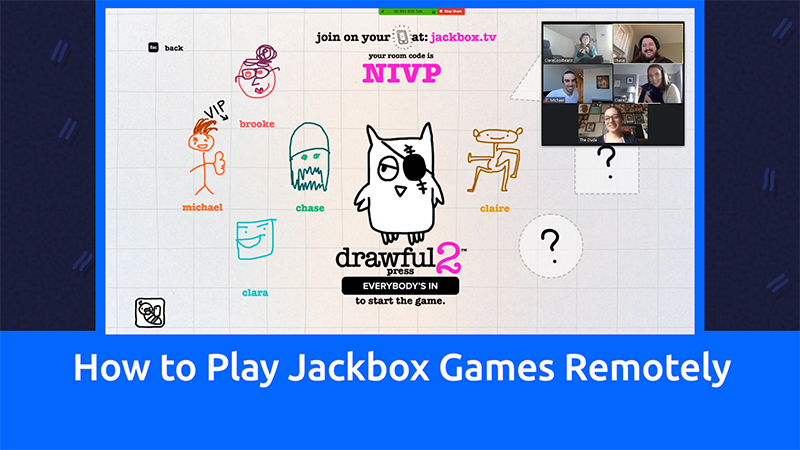
Congrats! You’ve found the perfect blog post. Jackbox Games are local multiplayer games, but with a few extra steps, it’s easy to get a game started with others in remote locations.
If you’re unfamiliar with our games, our general How To Play page is a great place to learn how to start a room and connect players to a game. After you’ve checked that out, hop on back to this page!
Playing with Friends and Family
If you feel confident about your internet connections, just jump onto a videoconferencing service (like Zoom, Discord, or Google Meet). Start a game on your laptop and use the screen-sharing option so that your players can see the game. Everyone can play along on their own mobile devices by using a browser and going to Jackbox.tv. If you’re having difficulty getting back to your video conferencing screen from the game’s full-screen mode, go to the settings in the main lobby and turn off “Full Screen Mode.”
If you’re a Steam fan, you can skip the videoconferencing step and use Steam Remote Play Together. This feature allows you to share your local co-op games online with friends. Using Remote Play Together, only one person needs to own a copy of a Jackbox Games title. Up to four players (or more with faster internet connections) can join.
Discord screen sharing can also be a great option if you’re playing on a laptop. You and up to nine of your Discord friends can connect and have both the game and video-enabled. You’ll want to see your friends’ faces when they’re laughing at your responses in Tee K.O. 2.
Some consoles also have screen share or co-stream abilities as long as you’re playing with someone who also owns that platform. Instead of streaming, many people have set up an additional webcam in front of their TV as an easier option.
You can stream using many different platforms, but we generally recommend using a PC to stream over a video conferencing service such as Zoom or Discord.
When sharing these ways, we recommend wired internet connections when possible!
Source
Changelog.gg summarizes and formats this update. How we read updates.