What changed
0 fixes0 additions1 change0 removals
changedHi! Many people are having trouble with controller support. This is typically due to the Steam UI conflicting with the game controller overlay. We are working on a fix to resolve this issue. In the meanwhile, if your game controller does not seem to be working, try any of the following steps (A, B or C): A. Turn off "Guide Button Focuses Steam" from your Steam settings. --------------------------------------------------------------------------------------------------- Details: (1) Click "Steam" menu from top left corner of the Steam app. (2) Select "Settings". (3) Select ”Controller”. (4) Select ”General Controller Settings”. (5) Untick ”Guide Button Focuses Steam”. or B. Start the game from the File Explorer (instead of the Steam app). --------------------------------------------------------------------------------------------------- Details: (1) From the Steam app, select “Library” >> “Games” and then choose “Oceanhorn…” from the list on the left. (2) Select Oceanhorn “Properties” with the right mouse button. (3) Select “Local Files” tab. (4) Select “Browse Local Files…”. (5) Double-click “Oceanhorn.exe”. or C. Disable the Steam overlay. ------------------------------------------- Details: (1) Click "Steam" menu from top left corner of the Steam app. (2) Select "Settings". (3) Select ”In-Game”. (3) Untick ”Enable the Steam Overlay while in-game”.
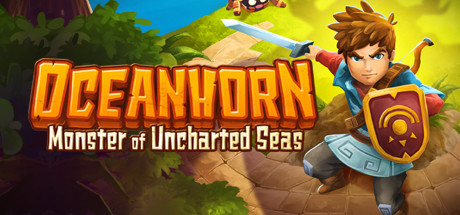
Oceanhorn: Monster of Uncharted Seas changes
changedHi! Many people are having trouble with controller support. This is typically due to the Steam UI conflicting with the game controller overlay. We are working on a fix to resolve this issue. In the meanwhile, if your game controller does not seem to be working, try any of the following steps (A, B or C): A. Turn off "Guide Button Focuses Steam" from your Steam settings. --------------------------------------------------------------------------------------------------- Details: (1) Click "Steam" menu from top left corner of the Steam app. (2) Select "Settings". (3) Select ”Controller”. (4) Select ”General Controller Settings”. (5) Untick ”Guide Button Focuses Steam”. or B. Start the game from the File Explorer (instead of the Steam app). --------------------------------------------------------------------------------------------------- Details: (1) From the Steam app, select “Library” >> “Games” and then choose “Oceanhorn…” from the list on the left. (2) Select Oceanhorn “Properties” with the right mouse button. (3) Select “Local Files” tab. (4) Select “Browse Local Files…”. (5) Double-click “Oceanhorn.exe”. or C. Disable the Steam overlay. ------------------------------------------- Details: (1) Click "Steam" menu from top left corner of the Steam app. (2) Select "Settings". (3) Select ”In-Game”. (3) Untick ”Enable the Steam Overlay while in-game”.
Hi! Many people are having trouble with controller support. This is typically due to the Steam UI conflicting with the game controller overlay. We are working on a fix to resolve this issue. In the meanwhile, if your game controller does not seem to be working, try any of the following steps (A, B or C): A. Turn off "Guide Button Focuses Steam" from your Steam settings. --------------------------------------------------------------------------------------------------- Details: (1) Click "Steam" menu from top left corner of the Steam app. (2) Select "Settings". (3) Select ”Controller”. (4) Select ”General Controller Settings”. (5) Untick ”Guide Button Focuses Steam”. or B. Start the game from the File Explorer (instead of the Steam app). --------------------------------------------------------------------------------------------------- Details: (1) From the Steam app, select “Library” >> “Games” and then choose “Oceanhorn…” from the list on the left. (2) Select Oceanhorn “Properties” with the right mouse button. (3) Select “Local Files” tab. (4) Select “Browse Local Files…”. (5) Double-click “Oceanhorn.exe”. or C. Disable the Steam overlay. ------------------------------------------- Details: (1) Click "Steam" menu from top left corner of the Steam app. (2) Select "Settings". (3) Select ”In-Game”. (3) Untick ”Enable the Steam Overlay while in-game”.