
HomeGamesUpdatesPricingMethodology
Steam News2 June 20261mo ago

[Steam Deck / Linux Support] "Failed to allocate graphics memory." Solution!

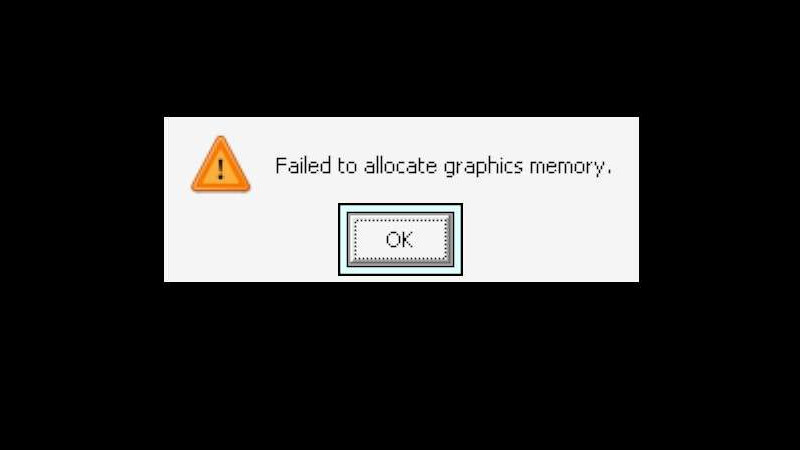
If you are hitting the random engine crash shown here: ("Failed to allocate graphics memory"), the fix is simple: switch to Proton Experimental. Default Proton tends to be unstable with this specific engine.

Full notes

Full Grey Heritage: Faded Vision update

Read the full published notes in a cleaner layout. The original post stays linked below.

What changed

0 fixes0 additions9 changes0 removals
  • Performance
  • Compatibility
changedIf you are hitting the random engine crash shown here:
changed("Failed to allocate graphics memory"), the fix is simple: switch to Proton Experimental . Default Proton tends to be unstable with this specific engine.
changedScroll down to the Compatibility tab.
changedCheck the box for "Force the use of a specific Steam Play compatibility tool" .
changedSelect Proton Experimental from the dropdown list.
changedIf you're on Desktop Linux:

Grey Heritage: Faded Vision changes

changedIf you are hitting the random engine crash shown here:
changed("Failed to allocate graphics memory"), the fix is simple: switch to Proton Experimental . Default Proton tends to be unstable with this specific engine.
changedScroll down to the Compatibility tab.
changedCheck the box for "Force the use of a specific Steam Play compatibility tool" .
changedSelect Proton Experimental from the dropdown list.

If you are hitting the random engine crash shown here:

("Failed to allocate graphics memory"), the fix is simple: switch to Proton Experimental. Default Proton tends to be unstable with this specific engine.

Here is how to get it running:

If you're on Steam Deck:

  1. Go to Faded Vision in your library.

  2. Hit the Gear icon on the right side and select Properties.

  3. Scroll down to the Compatibility tab.

  4. Check the box for"Force the use of a specific Steam Play compatibility tool".

  5. Select Proton Experimental from the dropdown list.

  6. Back out. Steam will automatically queue up a quick download. Once it's done, you're good to launch.

If you're on Desktop Linux:

  1. Right-click Faded Vision in your Steam Library and hit Properties.

  2. Click Compatibility on the left menu.

  3. Check"Force the use of a specific Steam Play compatibility tool".

  4. Pick Proton Experimental from the dropdown.

  5. Close the window, let Steam do its quick background download, and boot it up.

Source

Steam News / 2 June 2026

Open original post

Changelog.gg summarizes and formats this update. How we read updates.