What changed
0 fixes1 addition0 changes0 removals
addedSteam has a caching mechanism, which means that when a game is uninstalled and downloaded again, it is still the old version, not the new version 1. You can manually browse local files and delete game folders including mods~ 2. Clean up download cache Open the Steam client, click on the "Steam" menu in the upper left corner, and select "Settings". Switch to the "Download" tab in the settings window, scroll to the bottom, and click the "Clear Download Cache" button. After confirming the operation, Steam will clear the cache and prompt to log in again (after clearing, you need to re-enter your account password). 3. Reinstall and download the game and verify the integrity of the game files Right click on the target game in the Steam library and select "Properties". Go to the "Local Files" tab, click on "Verify the integrity of game files", and the system will automatically detect and repair damaged or missing files. 4. Finally, reopen the game. If the game is the latest version and can be played normally, you can install the mod again~ 5. Bugs caused by mods that cannot be saved or exited will not occur again
Goddess Scroll - The Last Starlight changes
addedSteam has a caching mechanism, which means that when a game is uninstalled and downloaded again, it is still the old version, not the new version 1. You can manually browse local files and delete game folders including mods~ 2. Clean up download cache Open the Steam client, click on the "Steam" menu in the upper left corner, and select "Settings". Switch to the "Download" tab in the settings window, scroll to the bottom, and click the "Clear Download Cache" button. After confirming the operation, Steam will clear the cache and prompt to log in again (after clearing, you need to re-enter your account password). 3. Reinstall and download the game and verify the integrity of the game files Right click on the target game in the Steam library and select "Properties". Go to the "Local Files" tab, click on "Verify the integrity of game files", and the system will automatically detect and repair damaged or missing files. 4. Finally, reopen the game. If the game is the latest version and can be played normally, you can install the mod again~ 5. Bugs caused by mods that cannot be saved or exited will not occur again
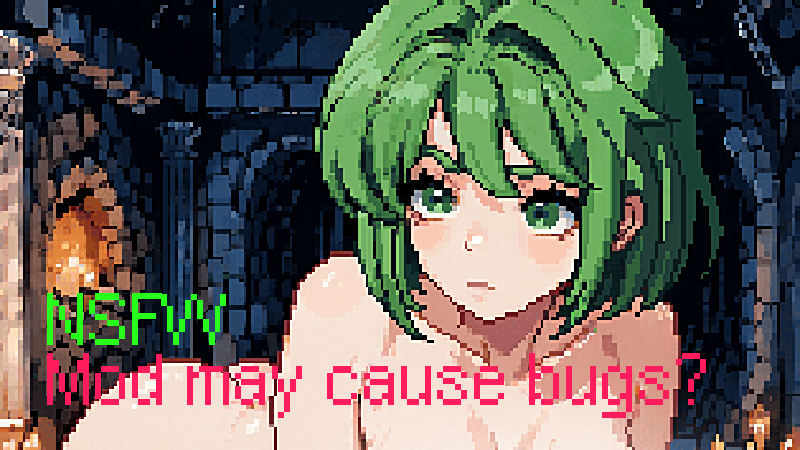
Solution~Regarding the bug where game mods may cause inability to save and exit Hello everyone, thank you for your enthusiasm! Thank you to the players for creating mods for our game~ This mod is too hentai! You're so HHHHH! Um... that's it ^_^~ If possible, and if everyone is willing to support us, we will release an official mod in the future~
Some players contacted us saying that installing mods would cause the game to be unable to save or exit~ We tested it to ensure that your game is the latest version
Steam has a caching mechanism, which means that when a game is uninstalled and downloaded again, it is still the old version, not the new version 1. You can manually browse local files and delete game folders including mods~ 2. Clean up download cache Open the Steam client, click on the "Steam" menu in the upper left corner, and select "Settings". Switch to the "Download" tab in the settings window, scroll to the bottom, and click the "Clear Download Cache" button. After confirming the operation, Steam will clear the cache and prompt to log in again (after clearing, you need to re-enter your account password). 3. Reinstall and download the game and verify the integrity of the game files Right click on the target game in the Steam library and select "Properties". Go to the "Local Files" tab, click on "Verify the integrity of game files", and the system will automatically detect and repair damaged or missing files. 4. Finally, reopen the game. If the game is the latest version and can be played normally, you can install the mod again~ 5. Bugs caused by mods that cannot be saved or exited will not occur again