
HomeGamesUpdatesPricingMethodology
Steam News24 December 20241y ago

IP Cameras Input

This submenu is available on some Windows platforms, for IP cameras using the ONVIF protocol for automatic discovery in a local network, and using the RTSP (Real Time Streaming Protocol) protocol for streaming.

Full notes

Full Free the Animation update

Read the full published notes in a cleaner layout. The original post stays linked below.

What changed

0 fixes0 additions1 change0 removals
  • Server
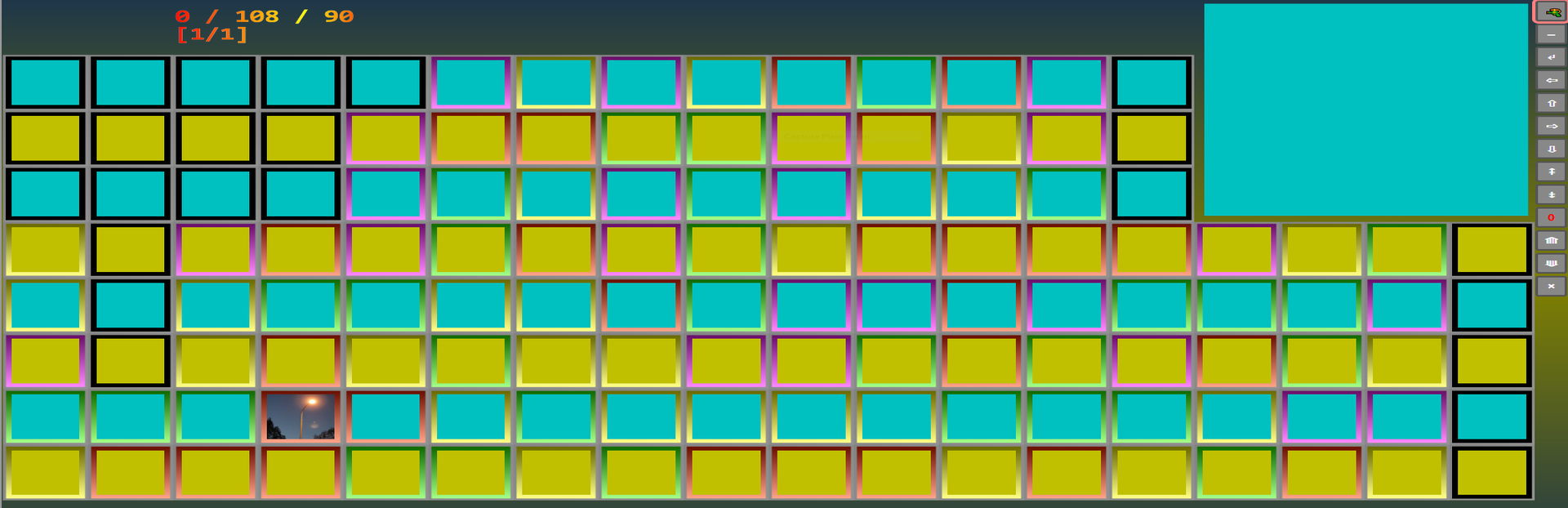
changedThis submenu is available on some Windows platforms, for IP cameras using the ONVIF protocol for automatic discovery in a local network, and using the RTSP (Real Time Streaming Protocol) protocol for streaming. - A recent version of the FFMPEG program must be installed and globally accessible on the system. - PTZ (Pan-Tilt-Zoom) command support is not mandatory, but PTZ commands can be sent by the application. - If there is no information saved or if you want to update the saved information, you must perform the following operations successively: - Press the Discover button, to discover the cameras. This may take a few seconds. - Fill in the username and password fields for each camera found. - Press the Connect button, to find and display the URLs of the audio and video streams. - Press the "Start Streams" button, to start streaming the streams. - Press the "Stop Streams" button, to stop streaming the streams. - When streaming, you can play the SameGame game (132 cubes, the cubes do not fall, but the edges become black). - You can also start the visualization without game with different numbers of cubes (for example: 2, 4, 8, 16, 32 and 132 cubes). - A video stream is assigned to each cube. If there are not enough cameras, the streams are repeated so that all cubes have a stream to display. - After choosing a camera (element 0, game or animation), by selecting the element 10 (PTZ), you can send PTZ commands to it (directional keys, PAGE UP and PAGE DOWN). - By selecting the element 1 (SameGame cubes), you can move or enlarge the cubes containing the video streams. - You can use the motion detection option to only display images in case of movement. - The theoretical maximum is set to 132 cameras. - A demo version only allows two cameras. The word "Demo" can be displayed in the video streams.

Free the Animation changes

changedThis submenu is available on some Windows platforms, for IP cameras using the ONVIF protocol for automatic discovery in a local network, and using the RTSP (Real Time Streaming Protocol) protocol for streaming. - A recent version of the FFMPEG program must be installed and globally accessible on the system. - PTZ (Pan-Tilt-Zoom) command support is not mandatory, but PTZ commands can be sent by the application. - If there is no information saved or if you want to update the saved information, you must perform the following operations successively: - Press the Discover button, to discover the cameras. This may take a few seconds. - Fill in the username and password fields for each camera found. - Press the Connect button, to find and display the URLs of the audio and video streams. - Press the "Start Streams" button, to start streaming the streams. - Press the "Stop Streams" button, to stop streaming the streams. - When streaming, you can play the SameGame game (132 cubes, the cubes do not fall, but the edges become black). - You can also start the visualization without game with different numbers of cubes (for example: 2, 4, 8, 16, 32 and 132 cubes). - A video stream is assigned to each cube. If there are not enough cameras, the streams are repeated so that all cubes have a stream to display. - After choosing a camera (element 0, game or animation), by selecting the element 10 (PTZ), you can send PTZ commands to it (directional keys, PAGE UP and PAGE DOWN). - By selecting the element 1 (SameGame cubes), you can move or enlarge the cubes containing the video streams. - You can use the motion detection option to only display images in case of movement. - The theoretical maximum is set to 132 cameras. - A demo version only allows two cameras. The word "Demo" can be displayed in the video streams.
  • This submenu is available on some Windows platforms, for IP cameras using the ONVIF protocol for automatic discovery in a local network, and using the RTSP (Real Time Streaming Protocol) protocol for streaming. - A recent version of the FFMPEG program must be installed and globally accessible on the system. - PTZ (Pan-Tilt-Zoom) command support is not mandatory, but PTZ commands can be sent by the application. - If there is no information saved or if you want to update the saved information, you must perform the following operations successively: - Press the Discover button, to discover the cameras. This may take a few seconds. - Fill in the username and password fields for each camera found. - Press the Connect button, to find and display the URLs of the audio and video streams. - Press the "Start Streams" button, to start streaming the streams. - Press the "Stop Streams" button, to stop streaming the streams. - When streaming, you can play the SameGame game (132 cubes, the cubes do not fall, but the edges become black). - You can also start the visualization without game with different numbers of cubes (for example: 2, 4, 8, 16, 32 and 132 cubes). - A video stream is assigned to each cube. If there are not enough cameras, the streams are repeated so that all cubes have a stream to display. - After choosing a camera (element 0, game or animation), by selecting the element 10 (PTZ), you can send PTZ commands to it (directional keys, PAGE UP and PAGE DOWN). - By selecting the element 1 (SameGame cubes), you can move or enlarge the cubes containing the video streams. - You can use the motion detection option to only display images in case of movement. - The theoretical maximum is set to 132 cameras. - A demo version only allows two cameras. The word "Demo" can be displayed in the video streams.

  • The "IP Cameras Input" option is compatible with existing games, by choosing a main camera. The Streams must be stopped, after being activated at least once. - The first camera with a stream entered is chosen as the main camera. You can also choose another camera by entering and saving the "Main IP Address" field. - During the different games offered by the application, you can choose to use the video stream of the main camera as a texture for the main cube of the game. - By selecting the element 2 (main image), you can move or enlarge the main cube (directional keys, PAGE UP and PAGE DOWN), set it in motion or stop it (SPACE key). - With this option, if you play an AFrame or Three game with Carousel, a maximum of video streams are taken into account. - If you choose or force a game with the IP Camera Input, the video stream of the main camera is used as a panorama for the game. - The VR and AR options remain available, as well as the settings "Opaque Zone Shape", "Use Color Mixing", ... - You can thus play while monitoring the video stream of the main camera.

Source

Steam News / 24 December 2024

Open original post

Changelog.gg summarizes and formats this update. How we read updates.