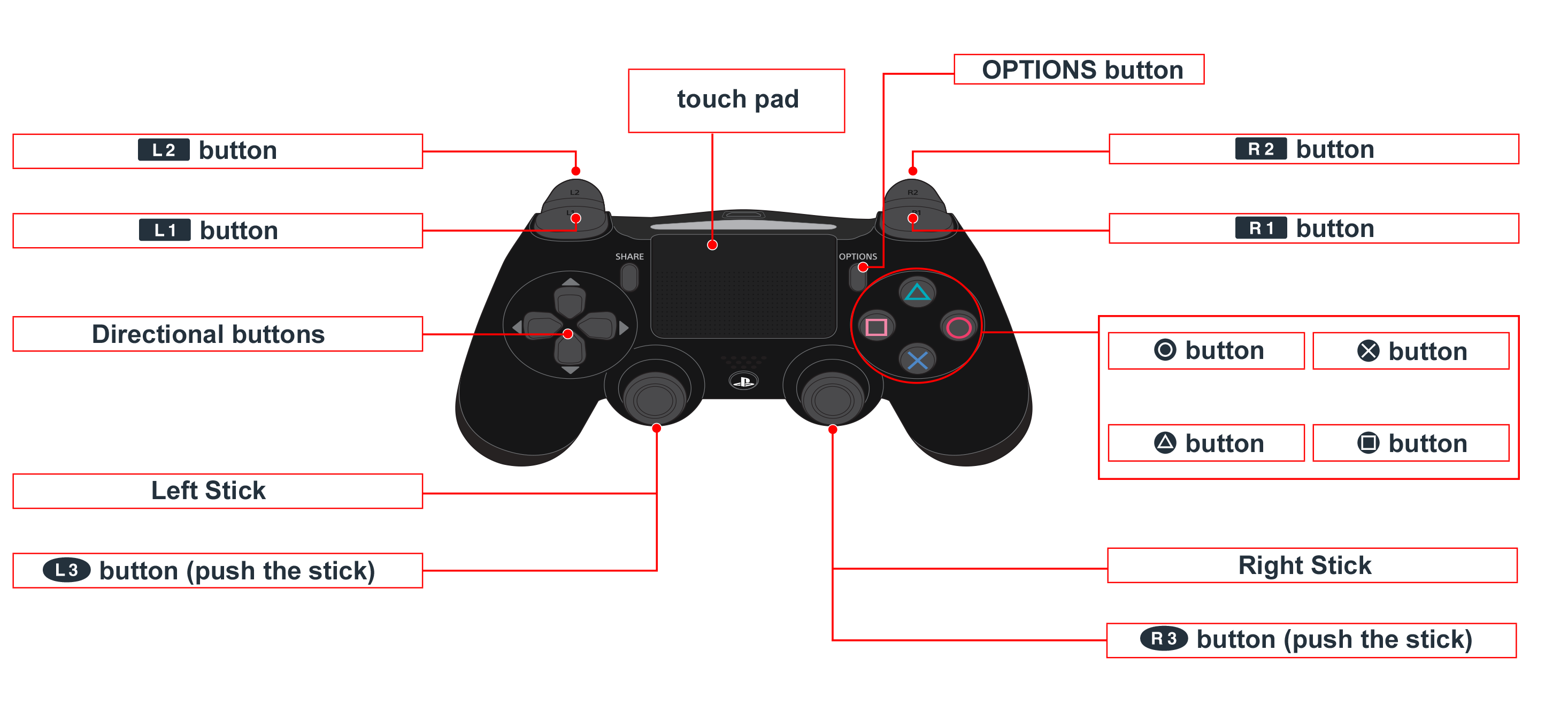
Happy News Here: More Controllers You need Keyboard Controller: ← : Left Move → : Right Move ↑ : Entering to a stage Q : Hold the button to adjust the viewer screen D : Basic Attack, hold the button to attack constantly
Full notes
Full Dimensum - Bizzarre Huntseeker update
Read the full published notes in a cleaner layout. The original post stays linked below.
What changed
0 fixes0 additions3 changes0 removals
UI and audio
changedHappy News Here: More Controllers You needKeyboard Controller: ← : Left Move → : Right Move ↑ : Entering to a stage Q : Hold the button to adjust the viewer screen D : Basic Attack, hold the button to attack constantly S : Jump A : Hold the button to accelerate Enter: Main Menu option selected and press Enter button ESC: If you are in the selecting world room or in the selecting mode room, press ESC you can go back to "Main Menu". Wall Sliding: Jump to the wall, and then hold the key of "←" or "→" with the same direction as the wall, then the character will slide the wall slowly. Wall climbing: Constantly press "Jump" button while sliding on the wall. Joystick Support: PS4 DUALSHOCK 4 Controller:
changedHappy News Here: More Controllers You needDirection Button ← : Left Move Direction Button → : Right Move Direction Button ↑ : Entering to a stage L2 Button : Hold the button to adjust the viewer screen Square Button : Basic Attack, hold the button to attack constantly Cross Button : Jump L1 Button : Hold the button to accelerate Options. : Main Menu option selected and press Options button before entering next menu. Share Button : If you are in the selecting world room or in the selecting mode room, press Share Button you can go back to "Main Menu". Joystick Support: XBox 360, XBox One Controller
changedHappy News Here: More Controllers You needDirection Button ← : Left Move Direction Button → : Right Move Direction Button ↑ : Entering to a stage LT Button : Hold the button to adjust the viewer screen Cross Button : Basic Attack, hold the button to attack constantly A Button : Jump LB Button : Hold the button to accelerate Start Button : In Main Menu what you selected before pressing the Options button and then entering the next menu. Back Button : If you are in the selecting world room or in the selecting mode room, press Back Button you can go back to "Main Menu". Actually, you can use a lot of different joysticks but must need the same as PS 4 or XBox One button position. Notice: We have a lot of buttons used in the future, that's why we can't use other buttons. 鍵盤操作 ← : 左 移動 → : 右 移動 ↑ : 進入傳送點 Q : 按住不放可下移玩家視角 D : 基本攻擊,按住可連射 S : 跳躍 A : 按住不放可加速角色移動 Enter: 在主選單選完選項,再按Enter進入下一個選單 ESC:如果您在選擇世界房間或選擇模式房間,按ESC鍵可以返回“主菜單”。 滑牆 : 在空中碰觸牆壁並按住對應牆壁方向的 "←" or "→" 鍵不放,可抓住牆壁緩緩滑落。 爬牆 : 在滑牆的動作中連續按下 "跳躍" 鍵。 控制器支援: PS4 DUALSHOCK 4 控制器 Direction Button ← : 左 移動 Direction Button → : 右 移動 Direction Button ↑ : 進入傳送點 L2 Button : 按住不放可下移玩家視角 Square Button : 基本攻擊,按住可連射 Cross Button : 跳躍 L1 Button : 按住不放可加速角色移動 Options. : 在主選單選完選項,再按Options進入下一個選單 Share Button : 如果您在選擇世界房間或選擇模式房間,按Share鍵可以返回“主菜單”。 控制器支援: 控制器支援: XBox 360, XBox One 控制器 Direction Button ← : 左 移動 Direction Button → : 右 移動 Direction Button ↑ : 進入傳送點 LT Button : 按住不放可下移玩家視角 Cross Button : 基本攻擊,按住可連射 A Button : 跳躍 LB Button : 按住不放可加速角色移動 Start Button : 在主選單選完選項,再按Start進入下一個選單 Back Button : 如果您在選擇世界房間或選擇模式房間,按Back鍵可以返回“主菜單”。 實際上,您可以使用許多不同的操縱桿,但必須與PS 4或XBox One按鈕位置相同。 注意:我們將來會使用很多按鈕,所以我們暫時不會使用其他按鈕。
Dimensum - Bizzarre Huntseeker changes
changedKeyboard Controller: ← : Left Move → : Right Move ↑ : Entering to a stage Q : Hold the button to adjust the viewer screen D : Basic Attack, hold the button to attack constantly S : Jump A : Hold the button to accelerate Enter: Main Menu option selected and press Enter button ESC: If you are in the selecting world room or in the selecting mode room, press ESC you can go back to "Main Menu". Wall Sliding: Jump to the wall, and then hold the key of "←" or "→" with the same direction as the wall, then the character will slide the wall slowly. Wall climbing: Constantly press "Jump" button while sliding on the wall. Joystick Support: PS4 DUALSHOCK 4 Controller:
changedDirection Button ← : Left Move Direction Button → : Right Move Direction Button ↑ : Entering to a stage L2 Button : Hold the button to adjust the viewer screen Square Button : Basic Attack, hold the button to attack constantly Cross Button : Jump L1 Button : Hold the button to accelerate Options. : Main Menu option selected and press Options button before entering next menu. Share Button : If you are in the selecting world room or in the selecting mode room, press Share Button you can go back to "Main Menu". Joystick Support: XBox 360, XBox One Controller
changedDirection Button ← : Left Move Direction Button → : Right Move Direction Button ↑ : Entering to a stage LT Button : Hold the button to adjust the viewer screen Cross Button : Basic Attack, hold the button to attack constantly A Button : Jump LB Button : Hold the button to accelerate Start Button : In Main Menu what you selected before pressing the Options button and then entering the next menu. Back Button : If you are in the selecting world room or in the selecting mode room, press Back Button you can go back to "Main Menu". Actually, you can use a lot of different joysticks but must need the same as PS 4 or XBox One button position. Notice: We have a lot of buttons used in the future, that's why we can't use other buttons. 鍵盤操作 ← : 左 移動 → : 右 移動 ↑ : 進入傳送點 Q : 按住不放可下移玩家視角 D : 基本攻擊,按住可連射 S : 跳躍 A : 按住不放可加速角色移動 Enter: 在主選單選完選項,再按Enter進入下一個選單 ESC:如果您在選擇世界房間或選擇模式房間,按ESC鍵可以返回“主菜單”。 滑牆 : 在空中碰觸牆壁並按住對應牆壁方向的 "←" or "→" 鍵不放,可抓住牆壁緩緩滑落。 爬牆 : 在滑牆的動作中連續按下 "跳躍" 鍵。 控制器支援: PS4 DUALSHOCK 4 控制器 Direction Button ← : 左 移動 Direction Button → : 右 移動 Direction Button ↑ : 進入傳送點 L2 Button : 按住不放可下移玩家視角 Square Button : 基本攻擊,按住可連射 Cross Button : 跳躍 L1 Button : 按住不放可加速角色移動 Options. : 在主選單選完選項,再按Options進入下一個選單 Share Button : 如果您在選擇世界房間或選擇模式房間,按Share鍵可以返回“主菜單”。 控制器支援: 控制器支援: XBox 360, XBox One 控制器 Direction Button ← : 左 移動 Direction Button → : 右 移動 Direction Button ↑ : 進入傳送點 LT Button : 按住不放可下移玩家視角 Cross Button : 基本攻擊,按住可連射 A Button : 跳躍 LB Button : 按住不放可加速角色移動 Start Button : 在主選單選完選項,再按Start進入下一個選單 Back Button : 如果您在選擇世界房間或選擇模式房間,按Back鍵可以返回“主菜單”。 實際上,您可以使用許多不同的操縱桿,但必須與PS 4或XBox One按鈕位置相同。 注意:我們將來會使用很多按鈕,所以我們暫時不會使用其他按鈕。
Happy News Here: More Controllers You need
Keyboard Controller
← : Left Move → : Right Move ↑ : Entering to a stage Q : Hold the button to adjust the viewer screen D : Basic Attack, hold the button to attack constantly S : Jump A : Hold the button to accelerate Enter: Main Menu option selected and press Enter button ESC: If you are in the selecting world room or in the selecting mode room, press ESC you can go back to "Main Menu".
Wall Sliding
Jump to the wall, and then hold the key of "←" or "→" with the same direction as the wall, then the character will slide the wall slowly.
Wall climbing
Constantly press "Jump" button while sliding on the wall.
Joystick Support
PS4 DUALSHOCK 4 Controller:
Direction Button ←
Left Move Direction Button → : Right Move Direction Button ↑ : Entering to a stage L2 Button : Hold the button to adjust the viewer screen Square Button : Basic Attack, hold the button to attack constantly Cross Button : Jump L1 Button : Hold the button to accelerate Options. : Main Menu option selected and press Options button before entering next menu.
Share Button
If you are in the selecting world room or in the selecting mode room, press Share Button you can go back to "Main Menu".
Joystick Support
XBox 360, XBox One Controller
Direction Button ←
Left Move Direction Button → : Right Move Direction Button ↑ : Entering to a stage LT Button : Hold the button to adjust the viewer screen Cross Button : Basic Attack, hold the button to attack constantly A Button : Jump LB Button : Hold the button to accelerate Start Button : In Main Menu what you selected before pressing the Options button and then entering the next menu.
Back Button
If you are in the selecting world room or in the selecting mode room, press Back Button you can go back to "Main Menu". Actually, you can use a lot of different joysticks but must need the same as PS 4 or XBox One button position.
Notice
We have a lot of buttons used in the future, that's why we can't use other buttons. 鍵盤操作 ← : 左 移動 → : 右 移動 ↑ : 進入傳送點 Q : 按住不放可下移玩家視角 D : 基本攻擊,按住可連射 S : 跳躍 A : 按住不放可加速角色移動 Enter: 在主選單選完選項,再按Enter進入下一個選單 ESC:如果您在選擇世界房間或選擇模式房間,按ESC鍵可以返回“主菜單”。 滑牆 : 在空中碰觸牆壁並按住對應牆壁方向的 "←" or "→" 鍵不放,可抓住牆壁緩緩滑落。 爬牆 : 在滑牆的動作中連續按下 "跳躍" 鍵。 控制器支援: PS4 DUALSHOCK 4 控制器 Direction Button ← : 左 移動 Direction Button → : 右 移動 Direction Button ↑ : 進入傳送點 L2 Button : 按住不放可下移玩家視角 Square Button : 基本攻擊,按住可連射 Cross Button : 跳躍 L1 Button : 按住不放可加速角色移動 Options. : 在主選單選完選項,再按Options進入下一個選單 Share Button : 如果您在選擇世界房間或選擇模式房間,按Share鍵可以返回“主菜單”。 控制器支援: 控制器支援: XBox 360, XBox One 控制器 Direction Button ← : 左 移動 Direction Button → : 右 移動 Direction Button ↑ : 進入傳送點 LT Button : 按住不放可下移玩家視角 Cross Button : 基本攻擊,按住可連射 A Button : 跳躍 LB Button : 按住不放可加速角色移動 Start Button : 在主選單選完選項,再按Start進入下一個選單 Back Button : 如果您在選擇世界房間或選擇模式房間,按Back鍵可以返回“主菜單”。 實際上,您可以使用許多不同的操縱桿,但必須與PS 4或XBox One按鈕位置相同。 注意:我們將來會使用很多按鈕,所以我們暫時不會使用其他按鈕。