
Full notes
Full Crystalfall update
Read the full published notes in a cleaner layout. The original post stays linked below.
What changed
- Gameplay
- Store
- Server
- Events
- Balance
- UI and audio
Crystalfall changes
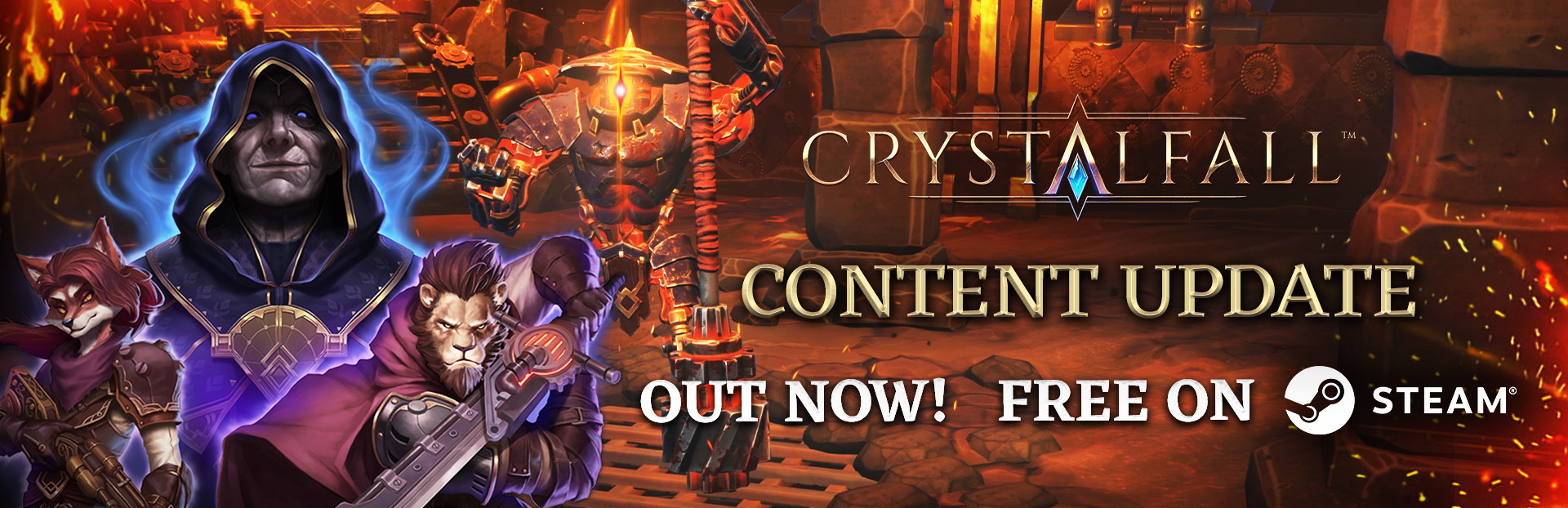
Slay new elemental foes, explore shattered steampunk dungeons, and take your skills to the next level with the new skill quality system coming in this content update!
Tips & Known Issues:
When you've download the new client, your talent tree will be reset and your talent points will be reimbursed, which you will need to respec.
All glyphs that were slotted into the talent tree will be moved to a special L&F (“Lost & Found”) Stash tab. You can grab them from there and reslot them into the talent tree.
Crafting looted items might change them a bit more than usual, as the item will be auto-upgraded to the Patch 1 version. E.g., some may receive new requirements that make them unusable.
Previously looted skills will not have the skill quality mechanic, only skills looted from the patch onward will.
General "WASD" info: All skills target the cursor, so there is no intuitive "DASH in current direction" (WASD is movement only, not combat). WASD video guide: View store page
- QoLSearch field has been added to Stash.
QoL: Mod foldout to buffs’ hover descriptions
We've run out of space in this announcement post - find more information here: https://steamcommunity.com/app/2574970/discussions/0/571539955565852970/
Offline Singleplayer Mode (optional)
For patch 1, we are adding a barebones offline version of Crystalfall. This will act as a safeguard for those who experience server issues, especially on the first days of the launch.
The offline version will include content coming to patch 1, excluding all online elements. The shop, in-game trading, leaderboards and any gained or purchased entitlements will be unavailable. Your online characters will not be available or transferable to the offline version. You will not be able to unlock additional stash tabs or inventory tabs and you won’t have access to any previously purchased items.
To play the offline version, select it when you launch the game on Steam.
Note: If you tick the “Always use this option” for the offline version and you later want to play the online version, follow these steps:
Right click the game in your Library
Select “Properties”
In “General” Properties, change the Selected Launch Option.
Launch Event Giveaway
Don’t miss out on Crystalfall’s launch event where we’ll randomly select 100 players to win 30 in-game Credits*. The event will run online only from the time of launch throughout the weekend, with a cutoff point on Sunday, 23:59 UTC. Winners will be announced on Tuesday, 9th June.
Complete the first act of the quest campaign! 50 players will be randomly selected and receive 30 in-game Credits each.
Journey into the endgame for another chance at a giveaway! 50 players will be randomly selected on the endgame leaderboard and will receive 30 in-game Credits each.
Launch Discount
We are running a sale to celebrate the launch, including discounts on Armor Packs and Back Attachments! Browse the Crystalfall Shop here:
Crystalfall on Steam Deck
Crystalfall can technically be played on Steam Deck, though we haven’t optimized the UI and interaction to have it verified. With WASD movement you should be able to map the left stick to WASD and the right click to mouse cursor and triggers for mouse buttons.
More info including tips and known issues about Steam Here can be found here: https://steamcommunity.com/app/2574970/discussions/0/571539955565852970/
Tips & Info about Steam Deck:
Works both for Online and Offline mode
Make sure to configure the settings before starting the game. This is due to the tutorial locking down some functions.
In Settings / Input / Primary control type -> change to Keyboard. This is WASD controls on the keyboard. This lets you control the character using the analog stick mapped to WASD on the deck, default should be the left analog stick.
Assign the Potion slot to the appropriate Steam Deck buttons (We suggest D-Pad).
Assign Inventory (i button) to a proper Deck button.
When the game has started: remap the “Move Only” function to “Move and Attack”. This will allow you to aim and attack with the right touchpad.
Known Issues on Steam Deck
The font has no dynamic scaling and will appear small on the Steam Deck screen.
The on-screen keyboard doesn't open automatically when needed. You need to open it manually (Press Steam + X buttons).
Stepping through the buttons isn’t supported, instead use the touchscreen or control the cursor with the analog sticks.
Make sure to configure the settings before starting the game. This is due to the tutorial locking down some functions.
Steam Deck button icons aren't in the game.
Some parts of the UI aren't touch enabled (Vials, for example).
Offline save games aren’t using Steam cloud for save games, so you're bound to the device you're playing on.
Source
Changelog.gg summarizes and formats this update. How we read updates.