
Update log
Full World of Warships update
The complete published notes, normalized for clean reading and source attribution.
Extracted changes
- UI and audio
- Balance
- Maps
- Performance
Update 0.9.6 has brought some major changes to the in-game audio. We’ve updated the Wwise sound engine, added new sound effects, and changed a number of audio settings.
Today we'll explain in detail how to customize the in-game audio to meet your preferences.
| Basic Audio Settings ● Fine Audio Settings ● Other Settings |
|---|
Basic Audio Settings
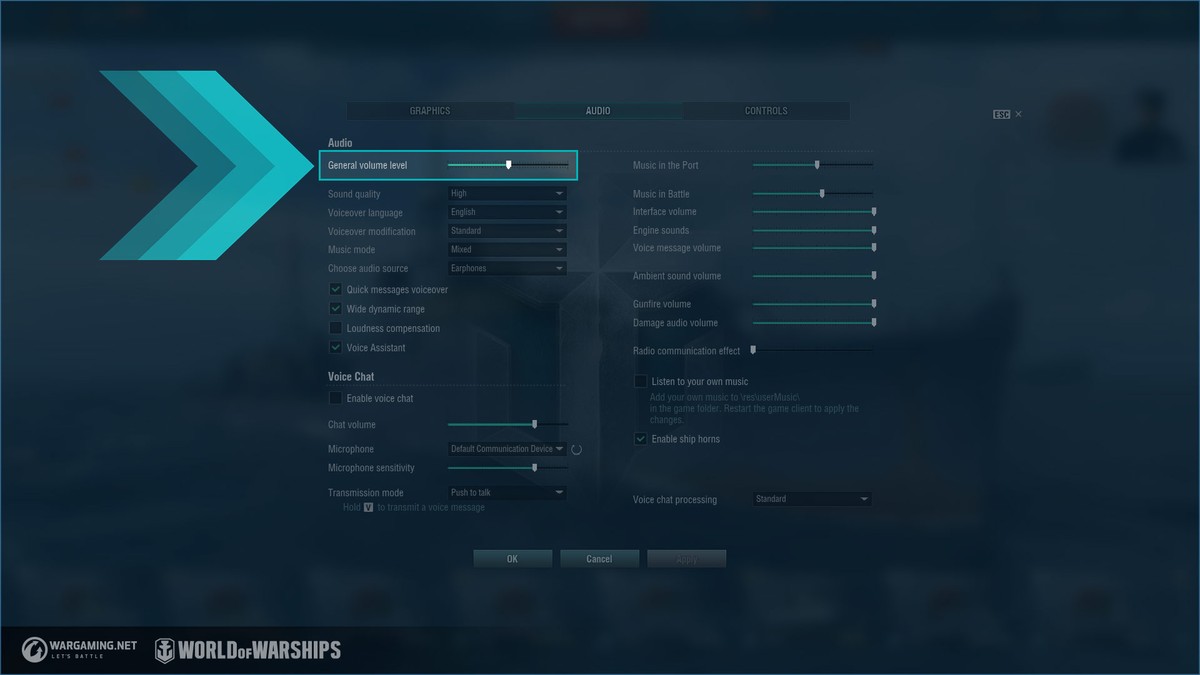
We recommend using default volume settings, where all the parameters are set to maximum volume. With these settings, you'll experience every detail of the sound effects and get the best experience from the game.
If the sound seems too loud, navigate to General volume level to adjust the volume of all in-game sounds.
Fine Audio Settings
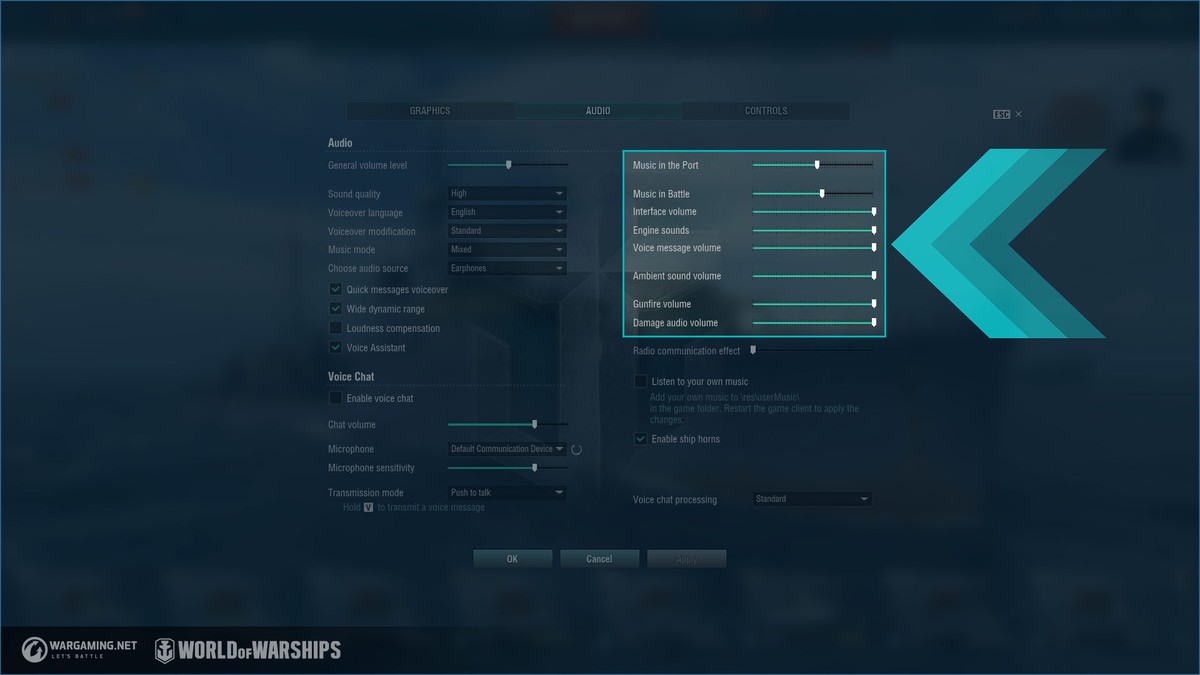
If the general volume controls are insufficient, you can change the fine settings in the audio customization window. These controls manage the different sound effects in our game:
NEW Damage audio volume: covers the sounds that indicate hits of the ship, aircraft, water, islands, and other surfaces, as well as sound effects for fire and flooding.
Gunfire volume: is the volume of all shots.
Interface volume: is the volume of the sound effects that are produced when you click icons, tabs, and notifications, as well as when you activate equipment, etc.
Music in the Port and Music in Battle: regulate music volume in the Port and in battle correspondingly, as well as the volume of the horn when you launch the game client.
Ambient sound volume: accounts for the sounds of nature on maps and background sounds in the Port.
Engine sounds: determines how loud ship and aircraft engines are.
Voice message volume: accounts for voice messages during battle, such as phrases from the quick commands chat, notifications about the remaining battle time, and other voice messages.
- Please notewe've removed theSFX volumesetting. It managed all non-music sounds in the game, except voice messages, thus duplicating certain fine settings options and causing confusion.
Other Settings
Let's take a look at some additional options that also deserve your attention.
Sound quality: the default value of this parameter is set by the game automatically, depending on your PC's characteristics. This parameter affects the game's performance.
Setting the sound quality to High is optimal for most devices. Low quality supports all the key sound elements of the game, leaving out minor details and reducing the load on the system. When the sound quality is set to Ultra, your sounds will be at their most intense and detailed. However, make sure your PC is powerful enough to handle it. It's also advisable to have high-quality speakers or earphones; otherwise you won't be able to appreciate the game's sounds on maximum settings.
- Voiceover languagefrom this list, you can select any voiceover language that’s available in the client. The default choice is the selected language of the client.
Voiceover modifications: from this list, you can select one of a few modifications for the voiceover. There are user modifications and those offered by the game's developers. The latter include Alexander Ovechkin, ARP Commanders, Bad Advice: Cap, and other modifications with Commanders who have unique voiceovers. If you select one of these modifications, the Commander's voice will be used as the voiceover for all your battles.
If you pick the National modification, your Commander will speak the language of the ship's nation, provided that this language is supported by the client. With National voiceover +, this rule is applied to all Commanders in battle. Commanders with
Source